Payments: setting up, plans, the fee line and refunds
The club's treasurer or an admin sets up card payments once, then adds plans for what families pay. Money goes straight to the club's own bank account through Stripe; Whole Team never holds it. Only people who hold the treasurer or admin role for the club can open Payments.
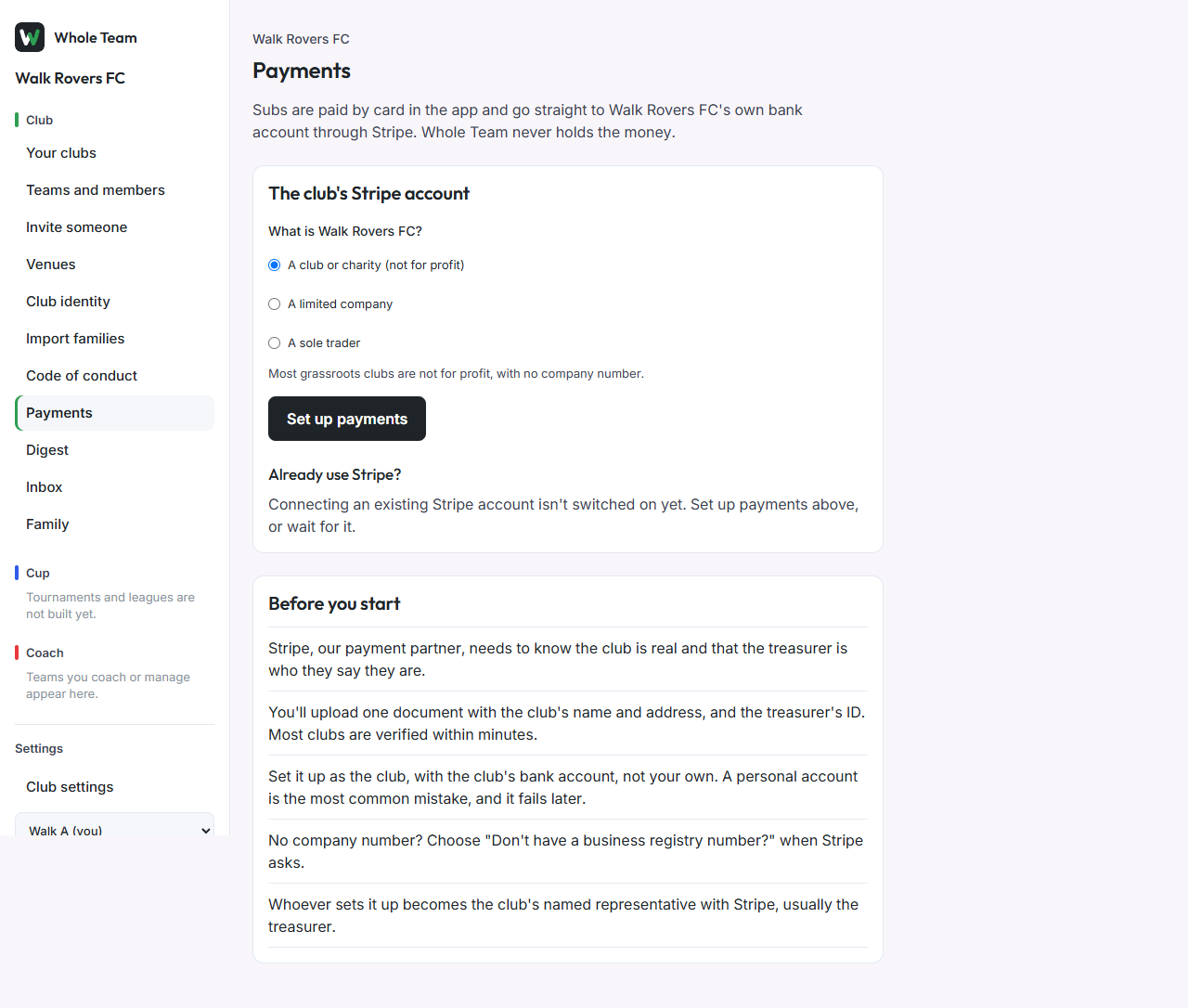
Set up payments
- In the menu, choose Payments.
- Under What is your club, choose the kind of organisation. Most grassroots clubs are not for profit, with no company number.
- Choose Set up payments. Stripe opens its own setup pages.
- Enter the club's details and the club's bank account, not your own. Stripe asks for one document with the club's name and address, and your ID as the club's representative.
- No company number? Choose "Don't have a business registry number?".
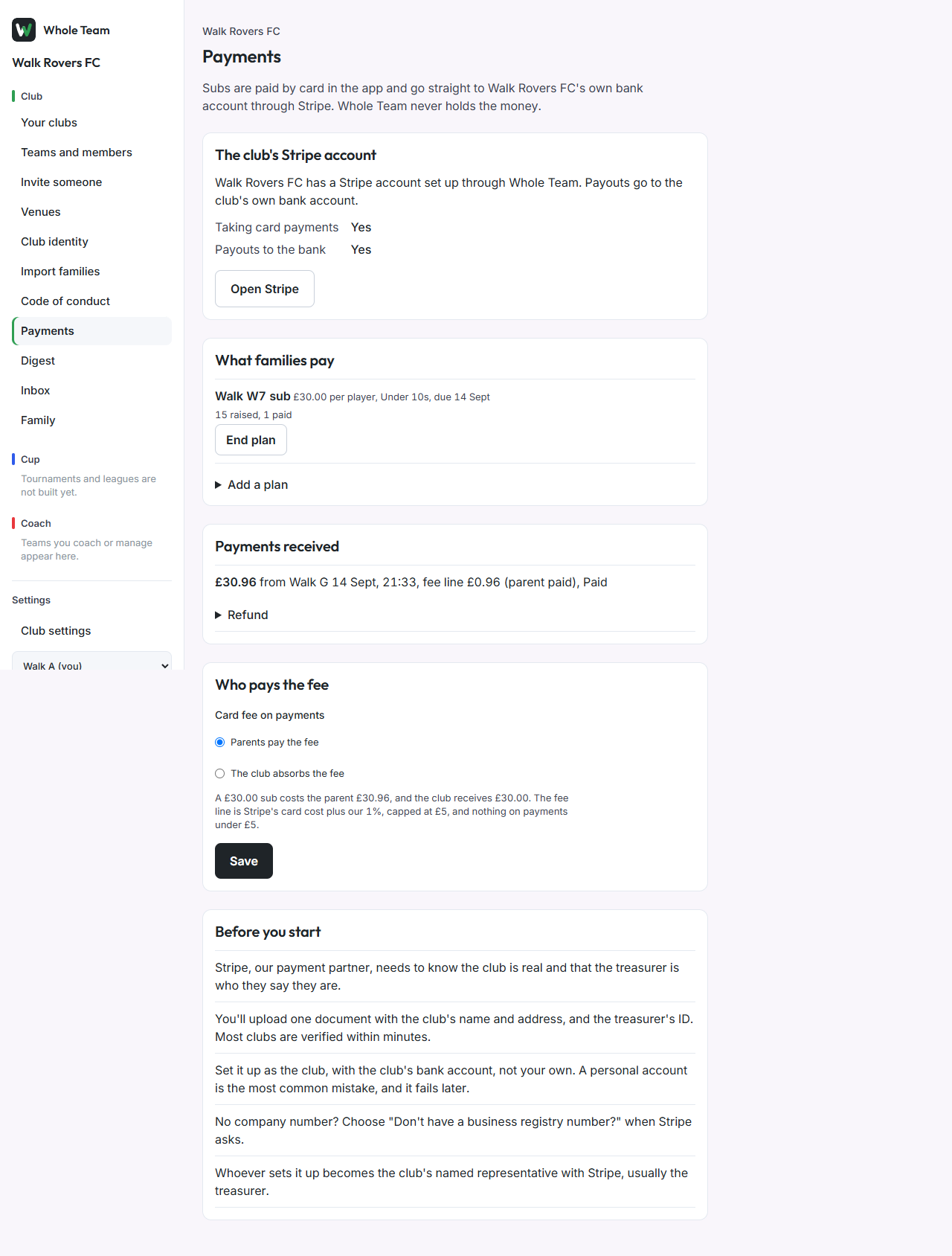
- When Stripe sends you back, the page shows Taking card payments and Payouts to the bank. Both say Yes once Stripe has checked everything, usually within minutes.
- If you stop part way, choose Continue setting up later.
Already use Stripe? Choose Connect the club's Stripe account to connect the account the club already has, so you don't start again. Payouts, documents and the bank account stay in the club's own Stripe dashboard.
Who pays the fee
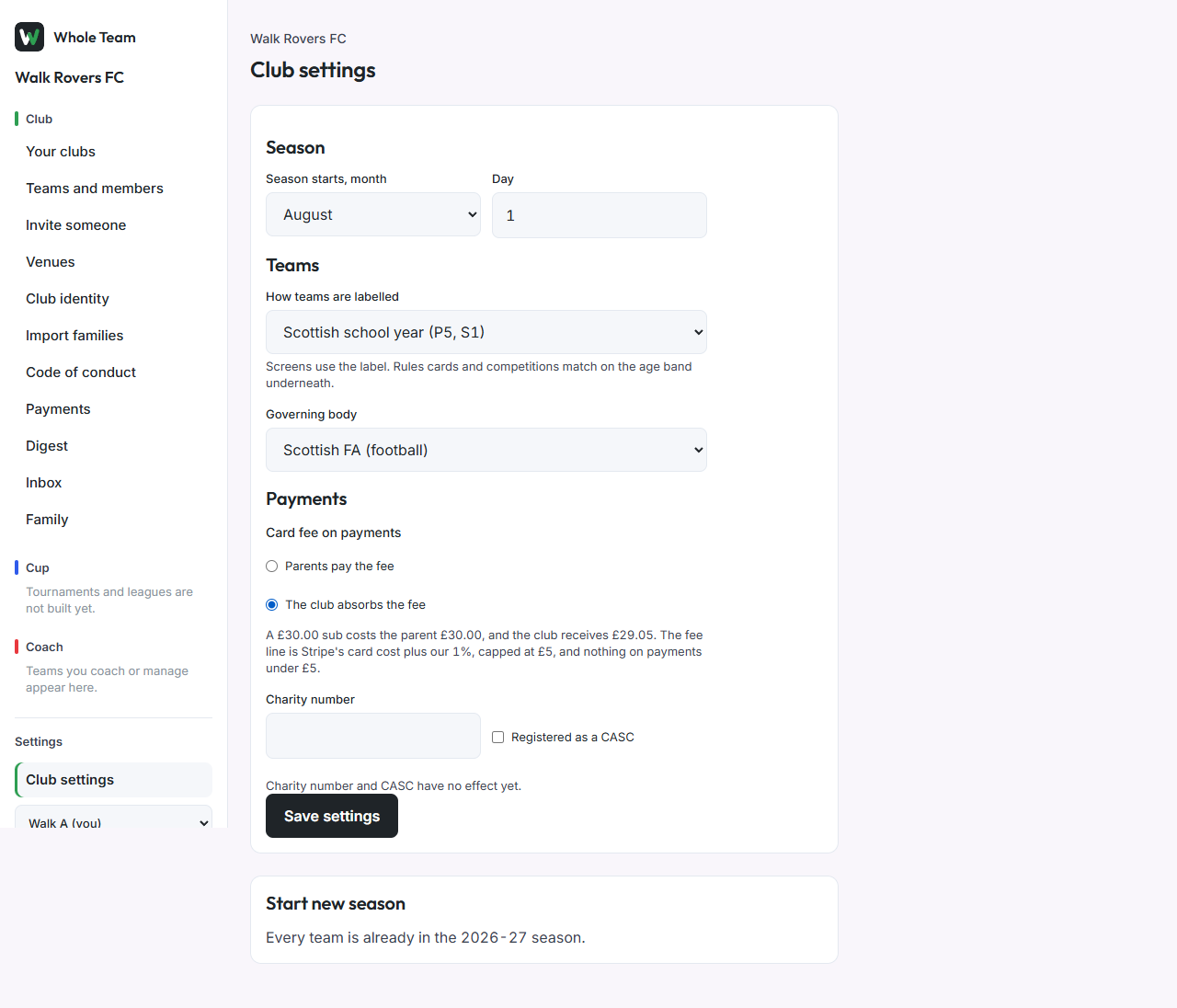
Every card payment carries one fee line: Stripe's card cost plus Whole Team's charge of 1%, capped at £5, and nothing on payments under £5.
- Under Who pays the fee, choose Parents pay the fee or The club absorbs the fee.
- The line underneath shows what it means for a £30 sub.
- Choose Save.
With parents paying, a £30 sub costs the parent £30.96 and the club receives £30.00. With the club absorbing it, the parent pays £30.00 and the club receives £29.05. Premium, European and international cards cost Stripe more; that difference comes out of what the club receives.
Add a plan
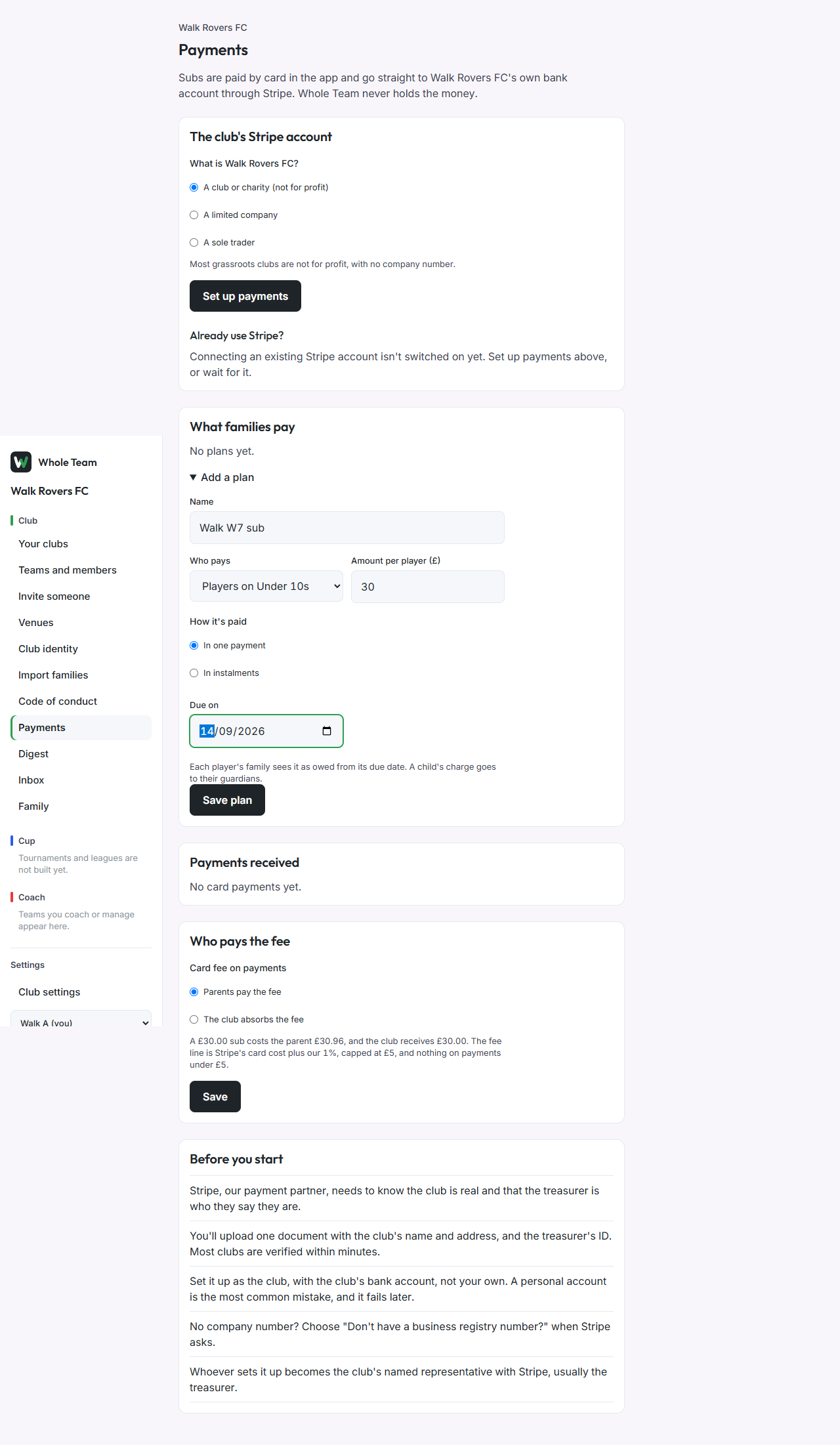
- Under What families pay, choose Add a plan.
- Give it a name, for example "Season subs 2026-27".
- Under Who pays, choose a team, or Players on every team.
- Enter the Amount per player.
- Choose In one payment and a due date, In instalments, how many, and a date for each, or Per session attended for match and training fees.
- Choose Save plan.
From each due date, every player on the team owes that amount. A child's charge goes to their guardians, and either guardian can pay. Someone who joins the team after a due date isn't charged for it. End plan stops new charges; anything already owed stays owed.
A per-session plan adds the amount to a family's balance each time a player is marked present on the register. Nothing is billed at that moment: at the start of each month everything from the month before becomes one bill per family, or sooner once a family's balance reaches £20. Marking a player absent afterwards takes that session off, if it hasn't been billed.
Payments received and refunds
Payments received lists each card payment: how much, who paid, the fee line and whether it has been refunded. A payment appears here only once Stripe has confirmed it.
- Choose Refund under the payment.
- Add a reason for the club's records if you want one.
- Choose Refund. The whole payment goes back to the card.
The card cost and Whole Team's charge are not returned on a refund, so the club gives back a little more than it received. A refunded charge is no longer owed.
Good to know
- Families can't pay by card until the club's Stripe account is taking payments. Until then they see what they owe and pay the club the way they usually do.
- The screenshots were taken with a simulated Stripe account on a test club.