The portal: finding your way around
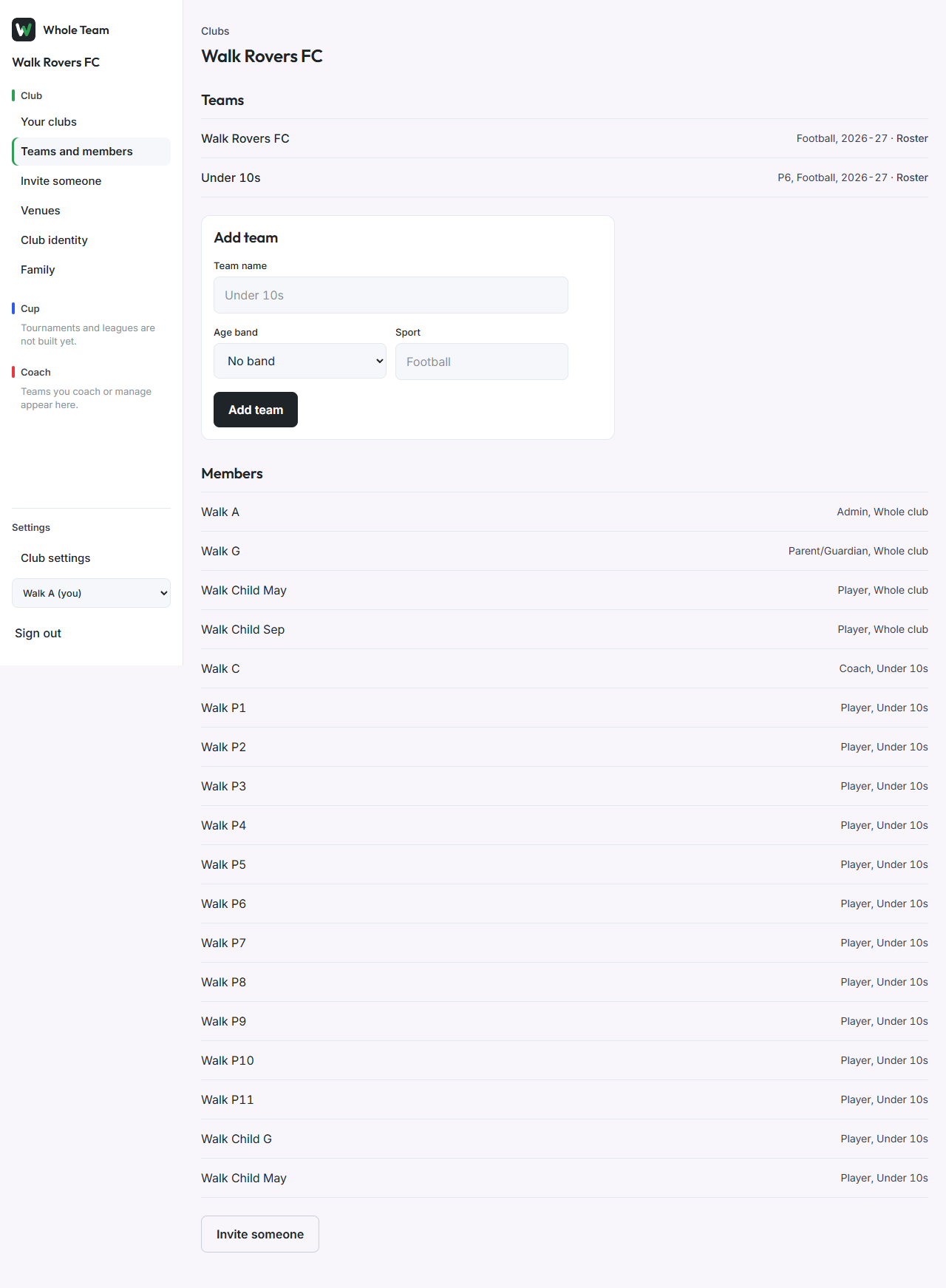
Every signed-in page sits inside the same frame. The menu on the left shows which club you are working in, then three sections marked with their colours: Club (green), Cup (blue) and Coach (red). Settings sits at the bottom. On a phone or a narrow window the menu folds away behind a Menu button at the top.
Move around the portal
- Your club's name is at the top of the menu. If you belong to more than one club, choose another from the list and the portal opens that club.
- Under Club: Your clubs, Teams and members, Invite someone (club admins), Venues, Club identity (club admins) and Family.
- Under Coach: the teams you coach or manage. If you coach none, it says so.
- Cup says tournaments and leagues are not built yet. It is there so you know where they will appear.
- Under Settings: Club settings (club admins), Answering for to switch between yourself and your children, and Sign out.
On a phone
- Tap Menu at the top right.
- Choose a page. The menu closes by itself.

Good to know
- A club's colours tint the background of that club's own pages only. Your clubs and Family stay plain.
- Children don't sign in. To answer for a child, choose them under Answering for.