The diagram editor
Each drill card has one diagram, drawn in the editor. Everything is placed in metres on the pitch, so the same diagram draws the same on the card, on paper and in the app. Only club admins can draw diagrams.
The editor uses the diagram language and nothing else:
| Place | Draw | |---|---| | Attacker (green), defender (ink), coach (white with an ink ring) | Run (solid red) | | Ball, cone (gold), pole (gold) | Pass (dotted red) | | Shield (blue) | Kick (dashed red) | | Area (a faint green square with its size in metres) | Defender move (ink dashed) |
There are no pitch markings. The drill's own area is the only boundary drawn.
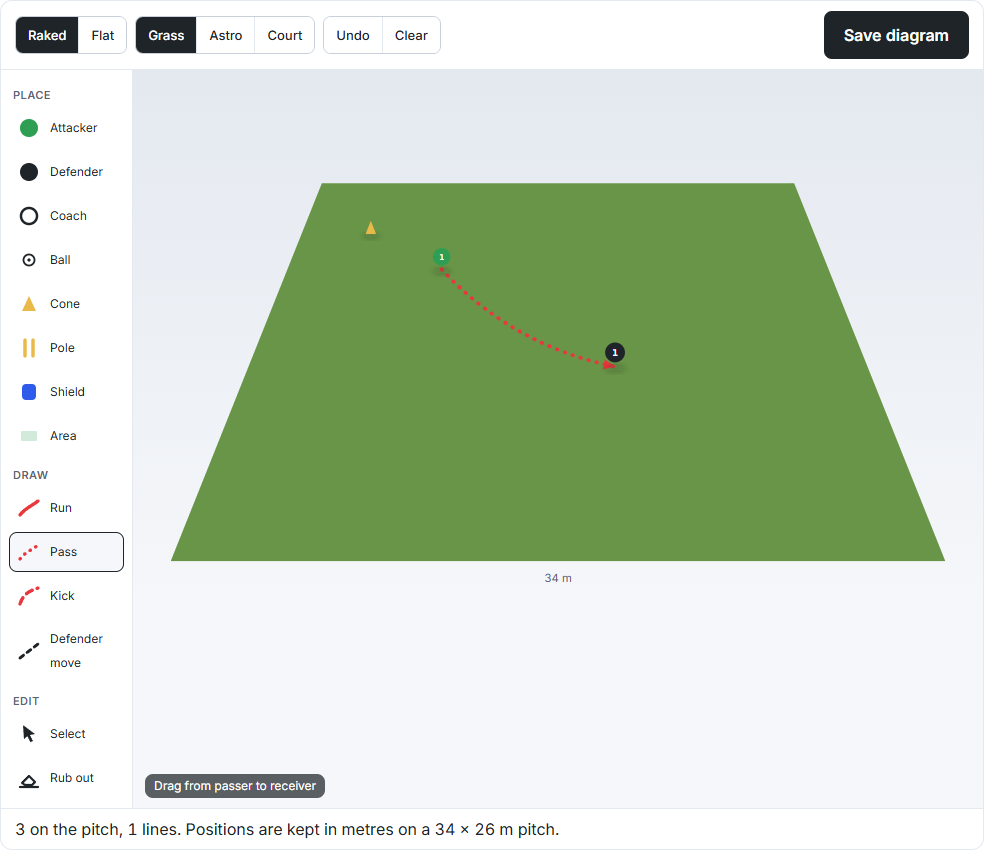
Drawing a diagram
- On a club card, choose Draw the diagram, or Edit diagram if it has one.
- Under Place, choose a token, then click the pitch to put it there. Attackers and defenders are numbered as you add them.
- Under Draw, choose a line, then drag from where it starts to where it ends.
- To move a token, choose Select and drag it, or just drag it with any place tool.
- Rub out takes away a token you click. Undo takes back the last change. Clear empties the pitch.
- Choose Save diagram. Each save is a new version, and the card shows the newest.
Views and surfaces
- Raked shows the pitch at an angle, for depth. Flat shows it from above, to scale. The saved positions are the same in both.
- Grass, Astro and Court change the surface colour. Only grass has mowing stripes.
- Positions snap to half a metre. The pitch's width in metres is shown on its near edge.