Moments: the team's photo board
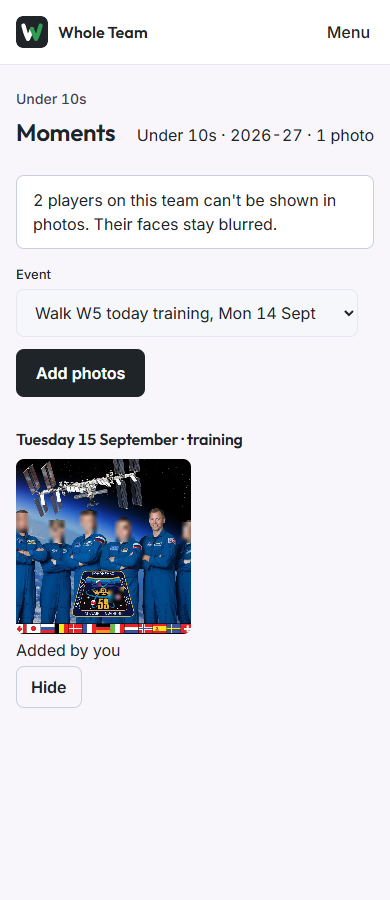
Each team has one photo board a season. Photos show as squares, newest first, grouped by the day they were taken and tagged with the event. There are no likes, no comments and no names on faces. Nobody can download or share a photo. Only the team's members and its coaches see the board.
Children appear only if their guardians have said yes to photos. Everyone else's face is blurred on the uploader's own phone, before anything is sent.
Seeing the board
- Open the team and choose Moments.
- The top line shows the team, the season and how many photos there are.
- If some players can't be shown, the board says how many: "2 players on this team can't be shown in photos. Their faces stay blurred." It never says who.
- Last season's boards are under Past seasons.
Adding photos
- On the board, choose the Event the photos are from, then Add photos and pick one photo or several.
- Your phone resizes each photo and removes its camera data, including where it was taken. The original never leaves your phone.
- If every player on the team has photo consent, the photos go straight onto the board. There is nothing else to do.
- Otherwise every face found is blurred first, and the screen says how many faces it found and how many players have no photo consent. Tap Tap if OK on each child who can be shown. Leave anyone you aren't sure about blurred.
- Choose Add to and the event name.
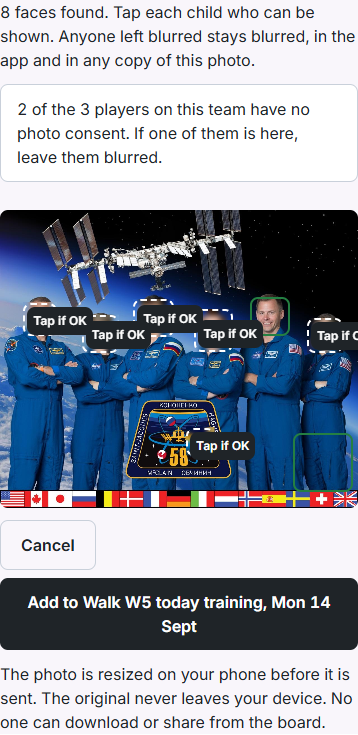
- A blurred face stays blurred. It can't be un-blurred later, because the original was never sent.
- Faces aren't recognised. The phone only finds where faces are and never works out who anyone is. It sometimes marks a patch that isn't a face; leave those blurred.
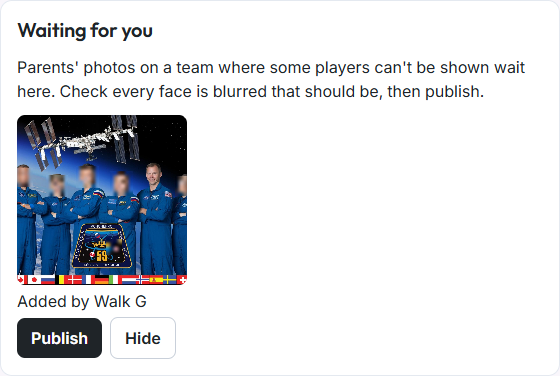
- Parents' photos may wait. On a team where some players can't be shown, a parent's photo waits for a coach and shows "Waiting for a coach". A coach's own photos go straight onto the board.
- The board holds 500 photos a season. After that it says "This season's board is full".
For coaches: photos waiting for you
- On the board, photos from parents appear under Waiting for you.
- Look at every face. If a child who can't be shown is visible, choose Hide.
- Otherwise choose Publish. The parent sees it move onto the board.
Hiding a photo
- Coaches can Hide any photo, and whoever added a photo can hide their own.
- A hidden photo leaves the board but is kept.
Turning Moments off
- A club admin can turn photo boards off for the whole club or for single teams, under Club settings, Moments.
- Turning a board off hides it and stops uploads. Nothing is removed.