Roster: who is on a team
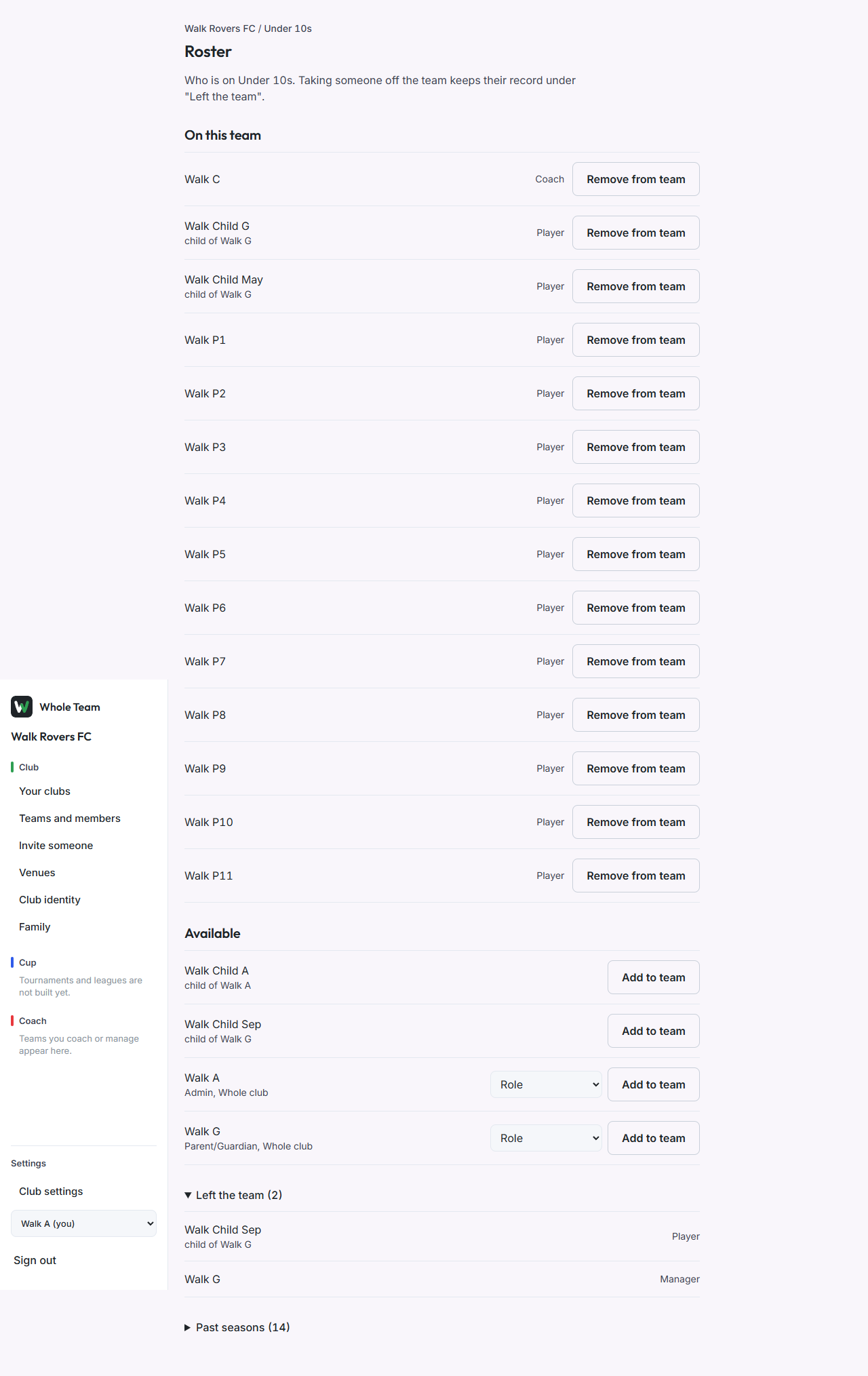
Club admins use the roster to put people on a team and take them off. It lists everyone on the team, with a child's guardians shown as "child of", and everyone in the club who is not on the team yet, including the children of club members. Taking someone off a team never deletes them: they move to "Left the team" and can be added again.
Only people who hold the admin role for the club (or for that team) can open it. Anyone else sees one line saying so.
Put someone on a team
- Open the club from Clubs.
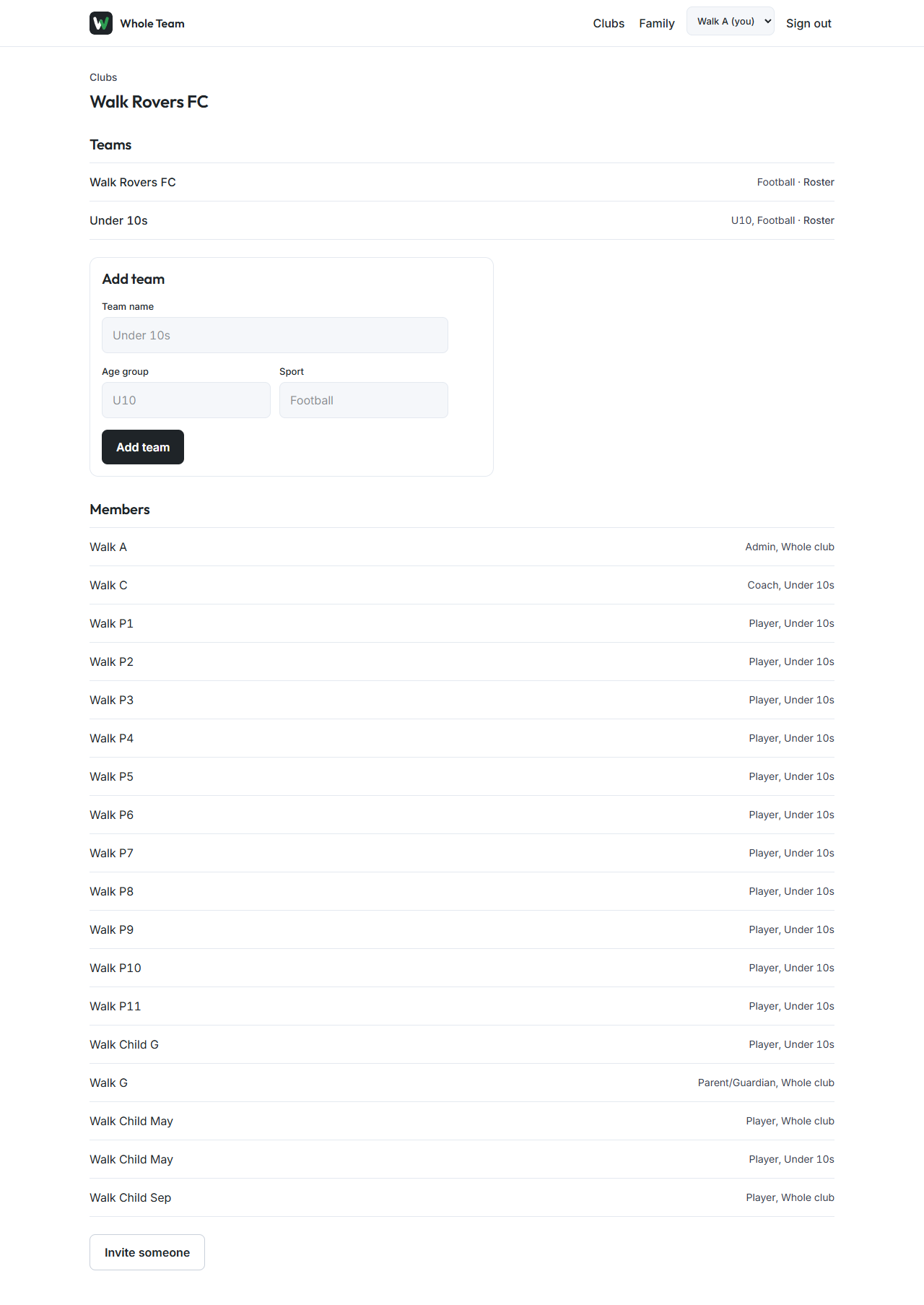
- Under Teams, choose Roster next to the team.
- Find the person under Available.
- A child shows "child of" and their guardians' names. Choose Add to team; they join as a player.
- An adult shows the roles they already hold in the club. Choose their role for this team (player, coach, manager, parent or supporter), then Add to team.
- They move to On this team. A child added here now appears on the team's selection page.
Take someone off a team
- On the roster, find them under On this team.
- Choose Remove from team.
- They move to Left the team (open it to see the list). Their record, availability and selections stay.
Good to know
- Nobody's date of birth is shown on the roster.
- A child can only be added once they are linked to a guardian who is a member of the club.
- Someone who has left every team and holds no other role in the club may show as "Name not visible to you" under Left the team.
- After a new season starts, last season's squad is listed under Past seasons, not under Left the team.
- The roster is also in the menu: Teams and members, then Roster beside a team.