Seasons, team labels and club settings
Club settings hold the things a club sets once: when its season starts, how teams are labelled, its governing body, who pays the card fee, and its charity or CASC status. Each team has an age band (U7 to U18) and a season. When a new season comes, Start new season moves every team up one age band and copies who is on each team, keeping last season's records.
Set up the club
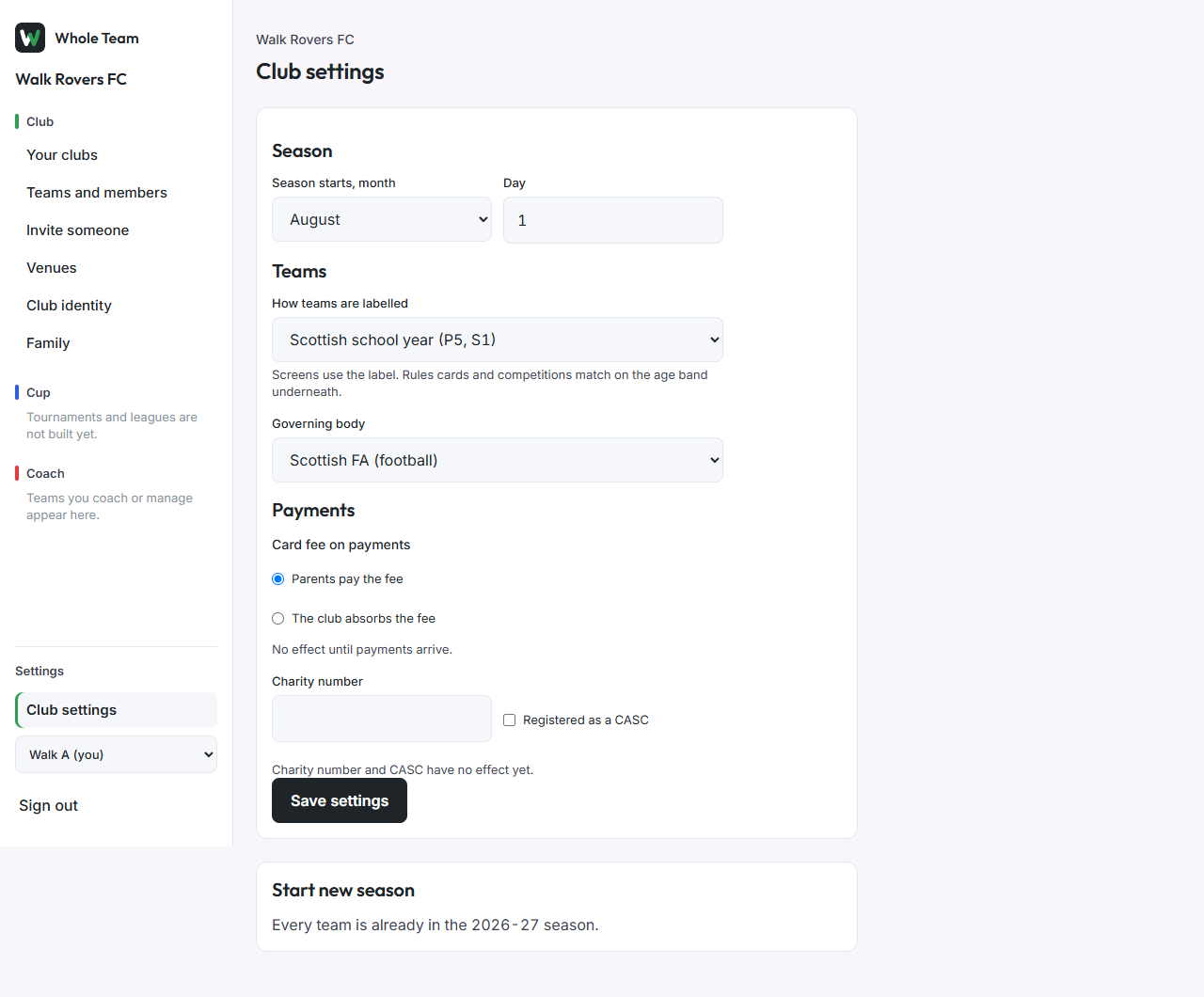
- In the menu, under Settings, choose Club settings.
- Set the month and day the season starts (1 August unless you change it).
- Choose how teams are labelled: age group (Under 10s), Scottish school year (P5, S1), English and Welsh school year (Year 5), or Northern Irish school year (Year 6).
- Choose your governing body.
- Choose who pays the card fee on payments, and add a charity number or tick CASC if they apply. These have no effect until payments arrive.
- Choose Save settings.
Give a team its band
- Open the team, then Team details.
- Choose the age band and the year its season started, and choose Save team.
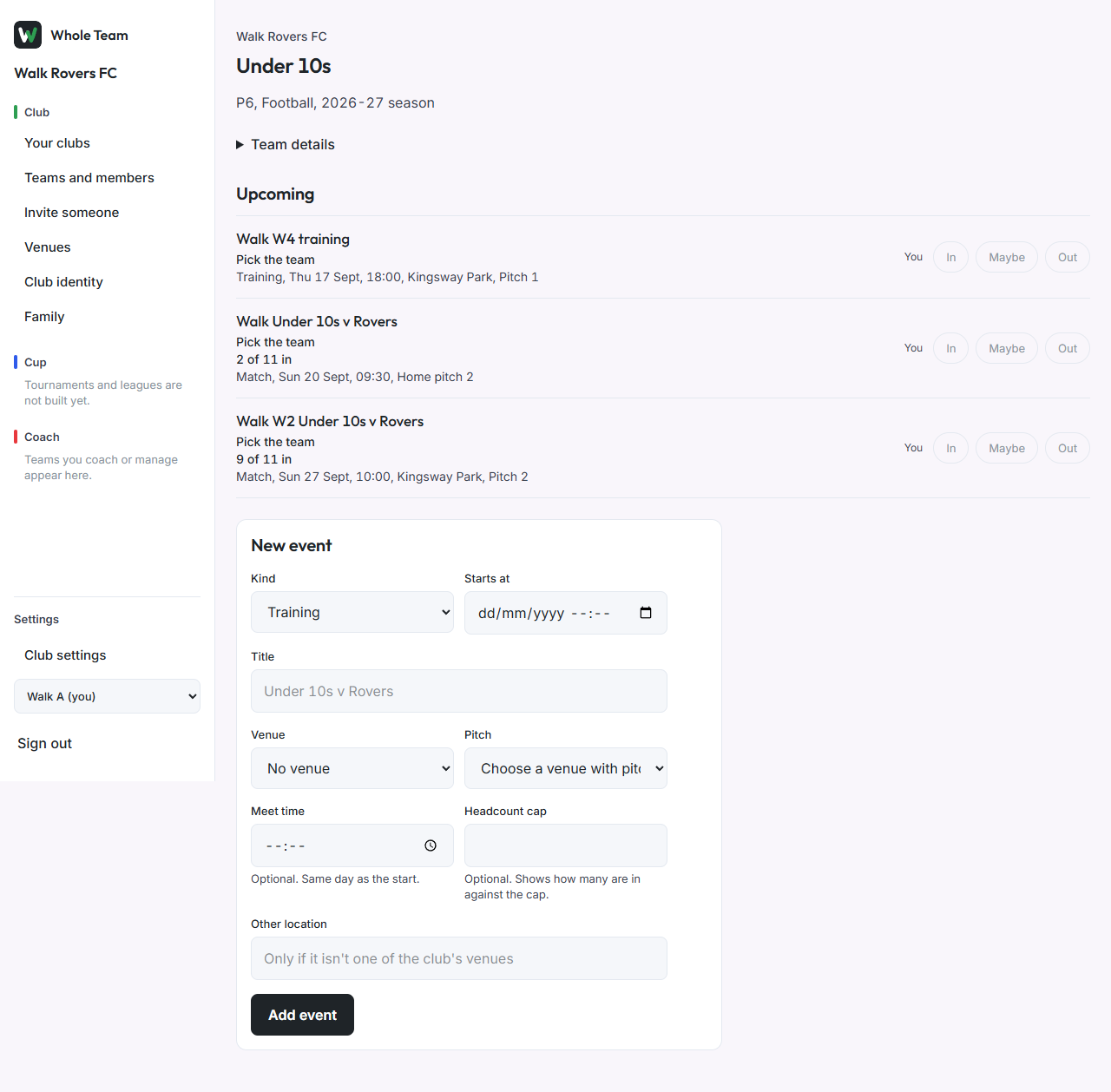
- The team page shows the label in the club's scheme, for example "P6, Football, 2026-27 season".
Start a new season
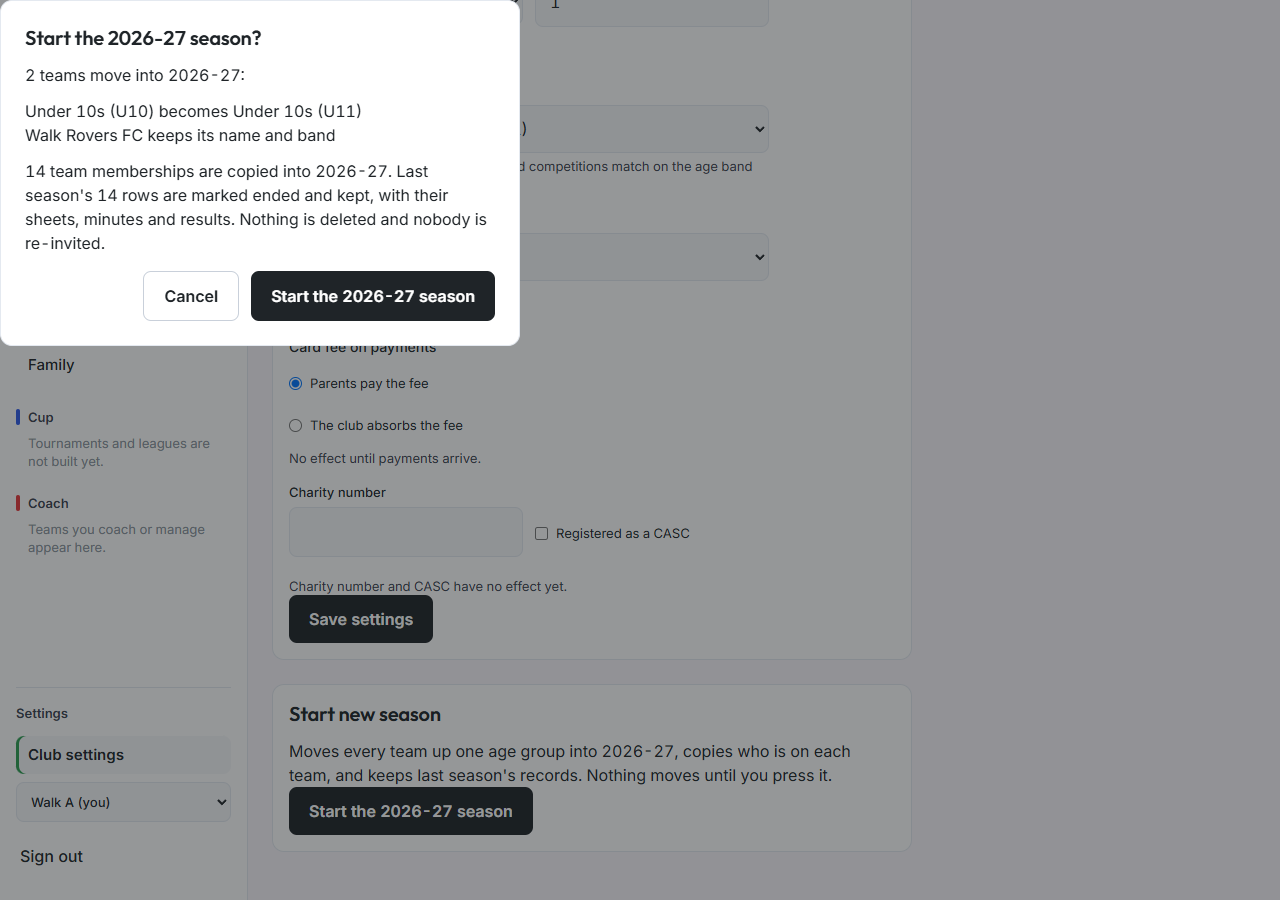
- In Club settings, under Start new season, choose Start the 2026-27 season (the year shown is the season whose start date is nearest today).
- Read the confirmation. It lists every team and what it becomes, how many team memberships are copied, and that last season's rows are kept. Nothing is deleted and nobody is re-invited.
- Choose Start the 2026-27 season to go ahead, or Cancel.
- Each team's roster now shows last season's squad under Past seasons. Pressing again does nothing: every team is already in the new season.