The club shop: pre-orders
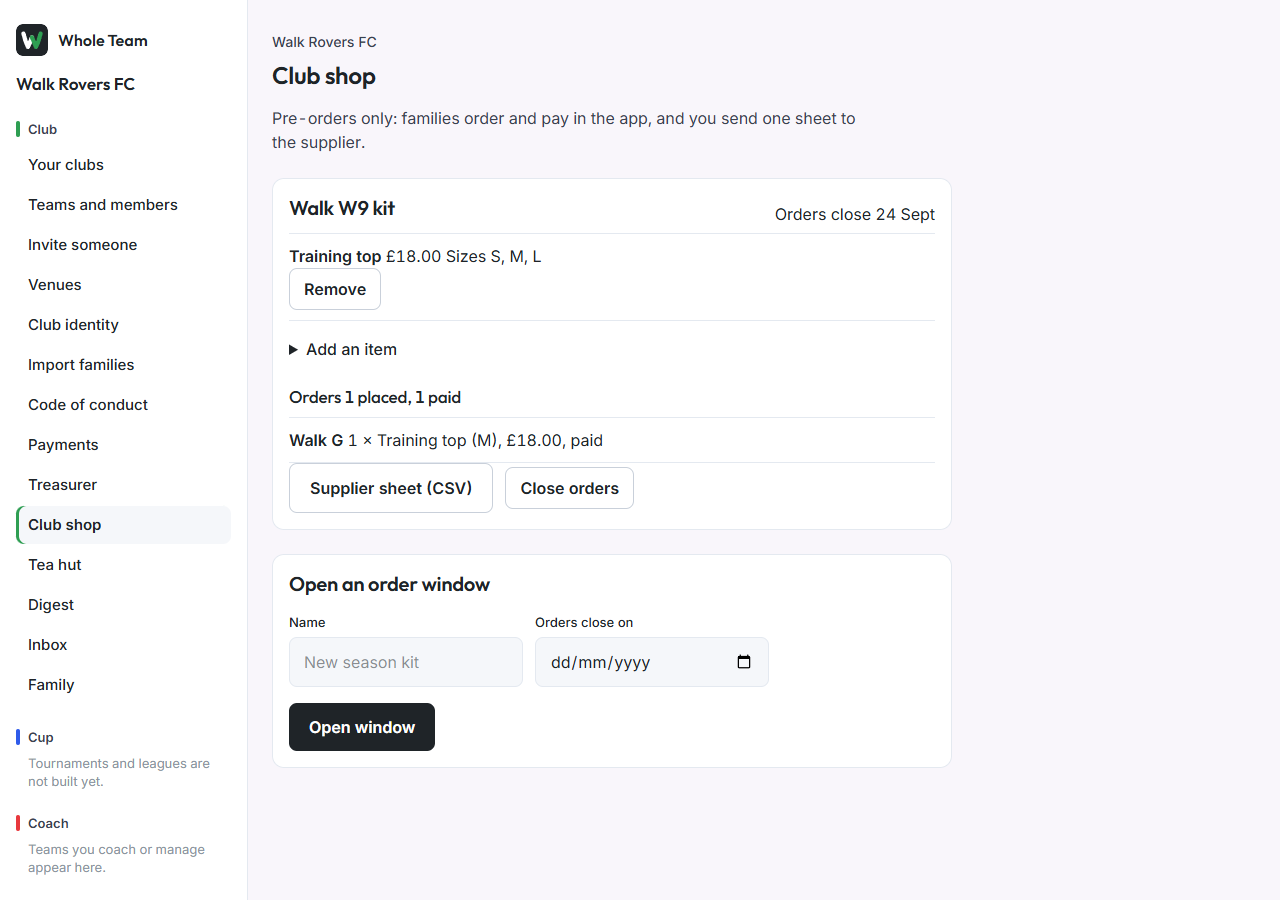
The treasurer opens an order window for kit, families order and pay in the app, and the club sends one sheet to its supplier. There's no stock and no delivery tracking. In the menu, choose Club shop.
Open an order window
- Under Open an order window, enter a Name, for example "New season kit", and the date Orders close on.
- Choose Open window.
- In the window, choose Add an item: name, price, and sizes separated by commas (leave sizes empty for one size).
- Choose Add item. Repeat for each item.
How families order
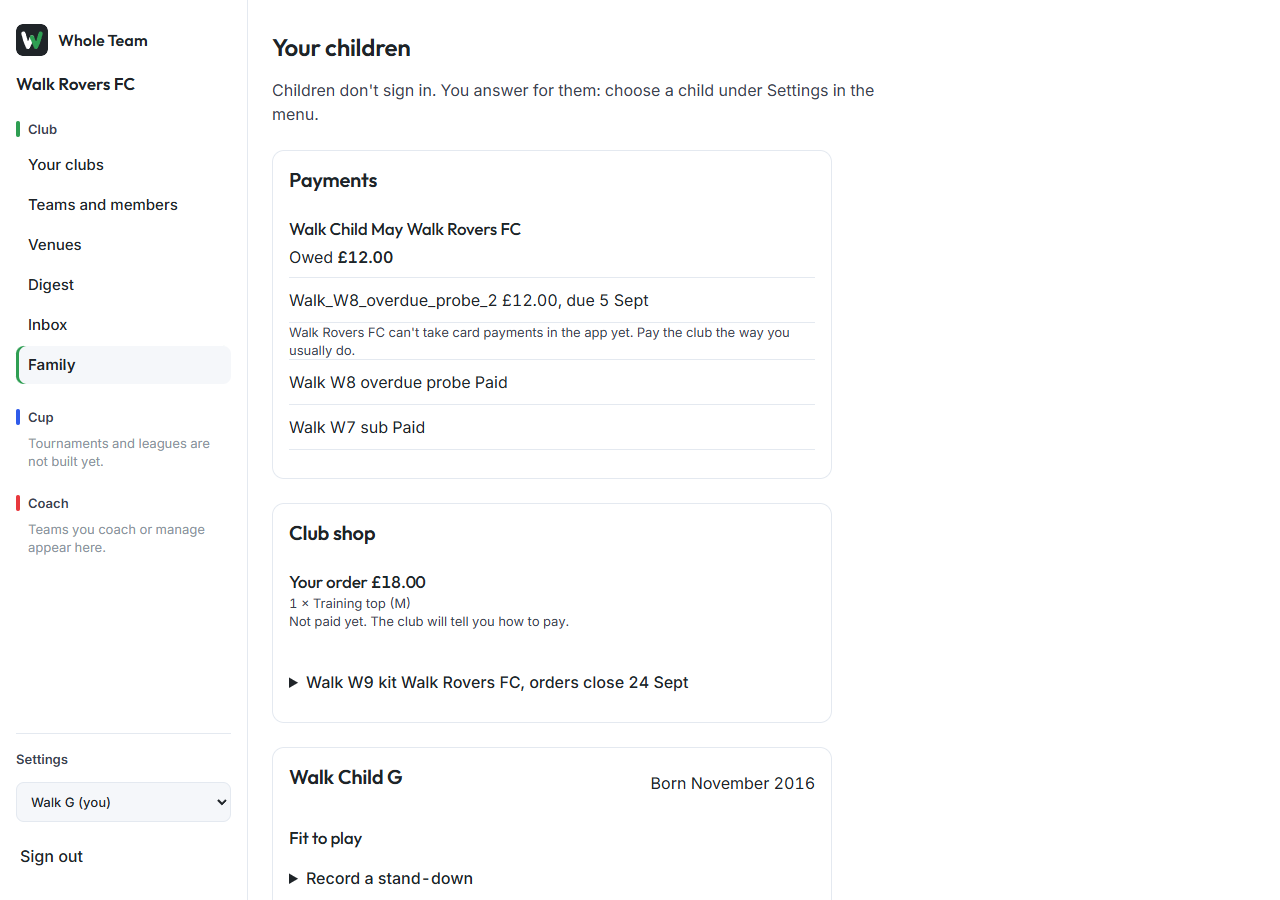
- On their Family page, under Club shop, a family opens the window.
- They enter how many of each item they want and choose a size.
- They choose Place order, then Pay for this order. The club's fee setting applies.
An order placed but not paid shows as "not paid yet" on both sides.
Close and order from the supplier
- When the window closes, choose Close orders (it also stops by itself after the closing date).
- Choose Supplier sheet (CSV). The first part lists each item and size with the quantity to order; the second lists who ordered what and whether they've paid, for handing kit out.
Good to know
- The shop is free for every club; it isn't part of Club Plus.
- Nothing is deleted: Remove takes an item off the window, and past orders keep it.