The site map
The organiser draws the competition's pitches and markers on a map of the venue. Entered clubs see the map, and the schedule uses its pitches. Open the competition and choose Site map.
If the venue has a map pin and satellite imagery is switched on, the first save fetches one satellite picture of the venue. Otherwise the map is a plain 10 metre grid and says "Satellite imagery unavailable". Either way, distances are real metres and stay true at any zoom.
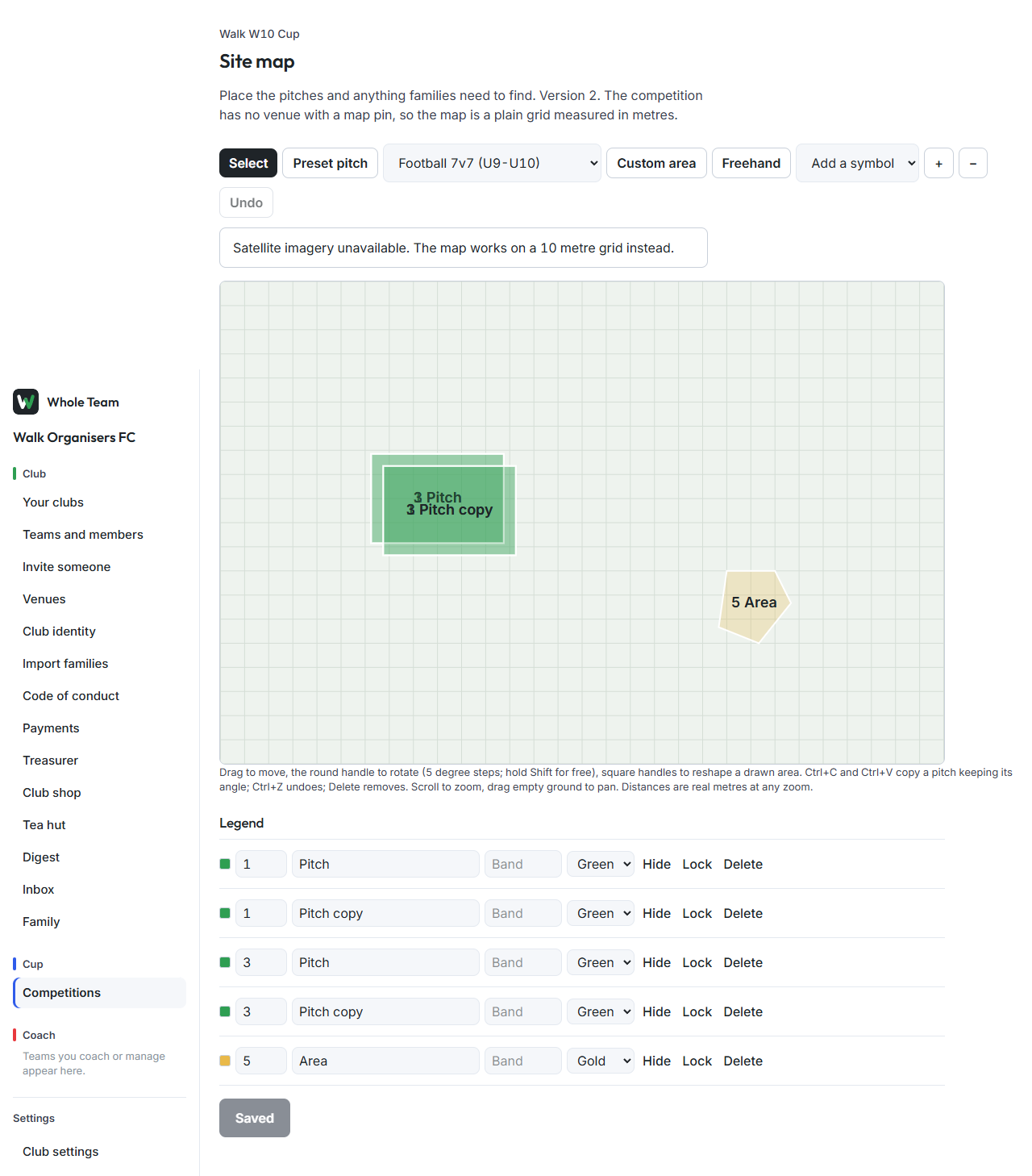
Add pitches
- Preset pitch: choose a size (The FA's youth pitch sizes, 5v5 to 11v11), then click where it goes.
- Custom area: drag from one corner to the other.
- Freehand: draw round an area with the mouse or a finger.
- Add a symbol: attacker, defender, coach, ball, cone, disc, tackle shield, gate or grid, then click where it goes.
Change what's on the map
- Move: drag it.
- Rotate: drag the round handle. It turns in 5 degree steps; hold Shift to turn freely.
- Reshape a drawn area: drag its square corner handles.
- Copy: select a pitch, press Ctrl+C then Ctrl+V. The copy keeps its angle and lands 5 metres away.
- Undo: Undo, or Ctrl+Z.
- Delete: select it and press Delete, or Delete in the legend.
- Zoom: scroll, or + and −. Drag empty ground to pan.
The legend
Each pitch has a number, a name, a band (the schedule keeps a band's games on its pitches) and a colour. Hide takes something off the map without removing it; Lock stops it being moved or deleted by accident.
Choose Save map. Each save is kept as a new version, so an earlier layout is never lost.
Good to know
- The only symbols are the fixed set from the diagram language; club colours never appear on the map.
- Maps never use a live map service in the app: the picture is fetched once and stored.