

Parent
Getting started as a parent
From your coach's invite to your child on the team and your first In or Out. About five minutes.
What you'll have at the end
- You're in your child's team: training, matches and messages in one place.
- Your child added once, with you deciding about team photos.
- A tap to say In or Out, and the other parent seeing the same.
The steps
7 steps, about 8 minutes of your time.
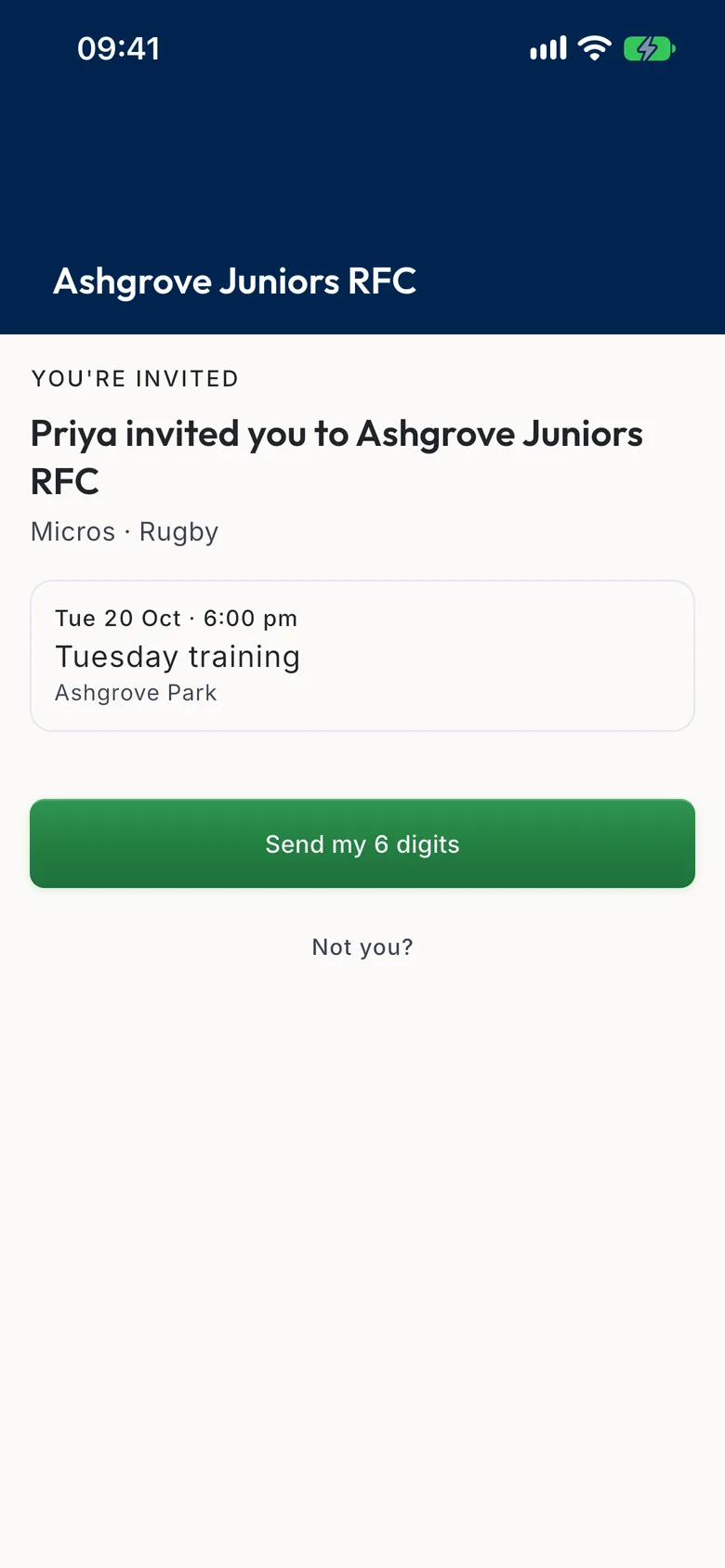
1Tap your coach's link
Your coach sends you a WhatsApp message with a link. It says who invited you, to which club and team.
About 1 minute
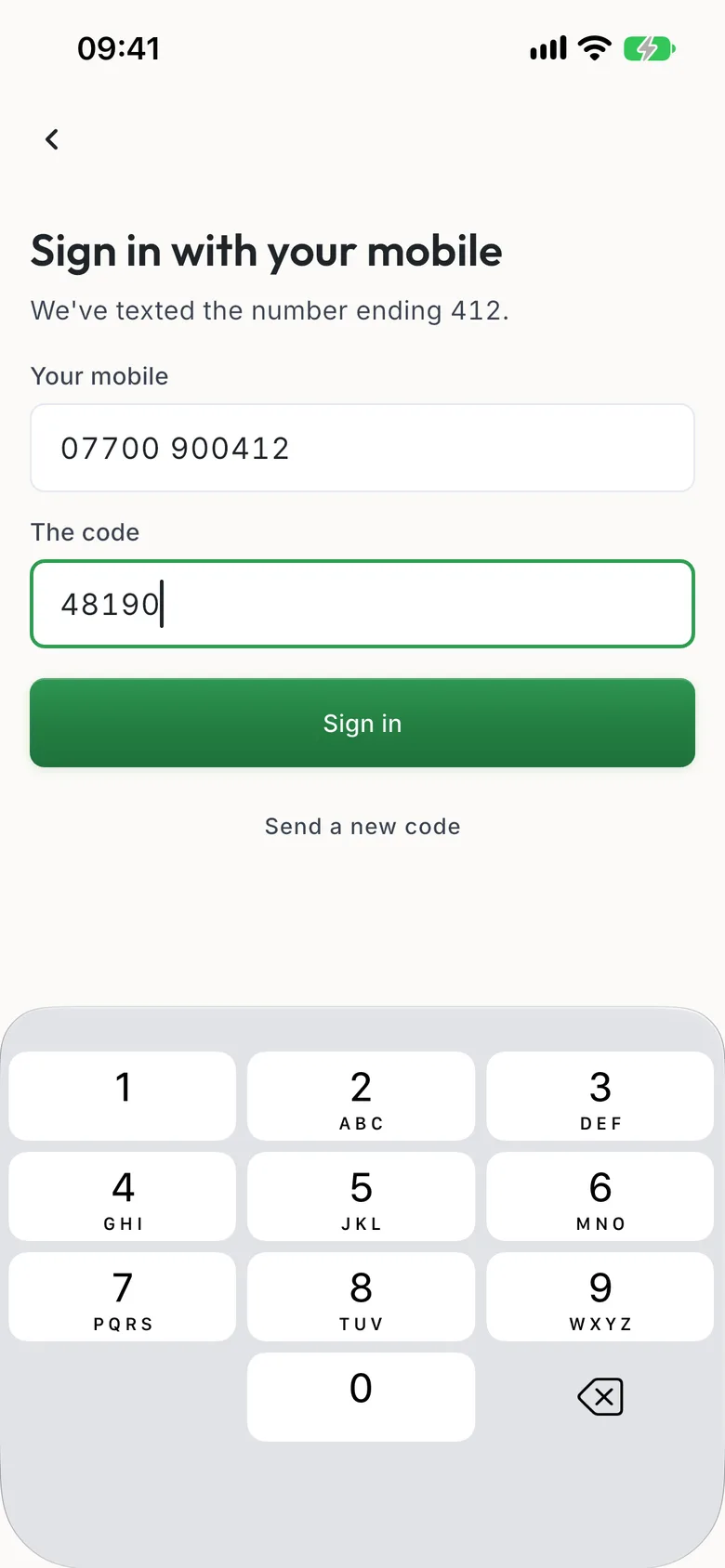
2Sign in with the code we text you
Tap Send my 6 digits and type the code we text to your mobile. No password to remember.
About 1 minute
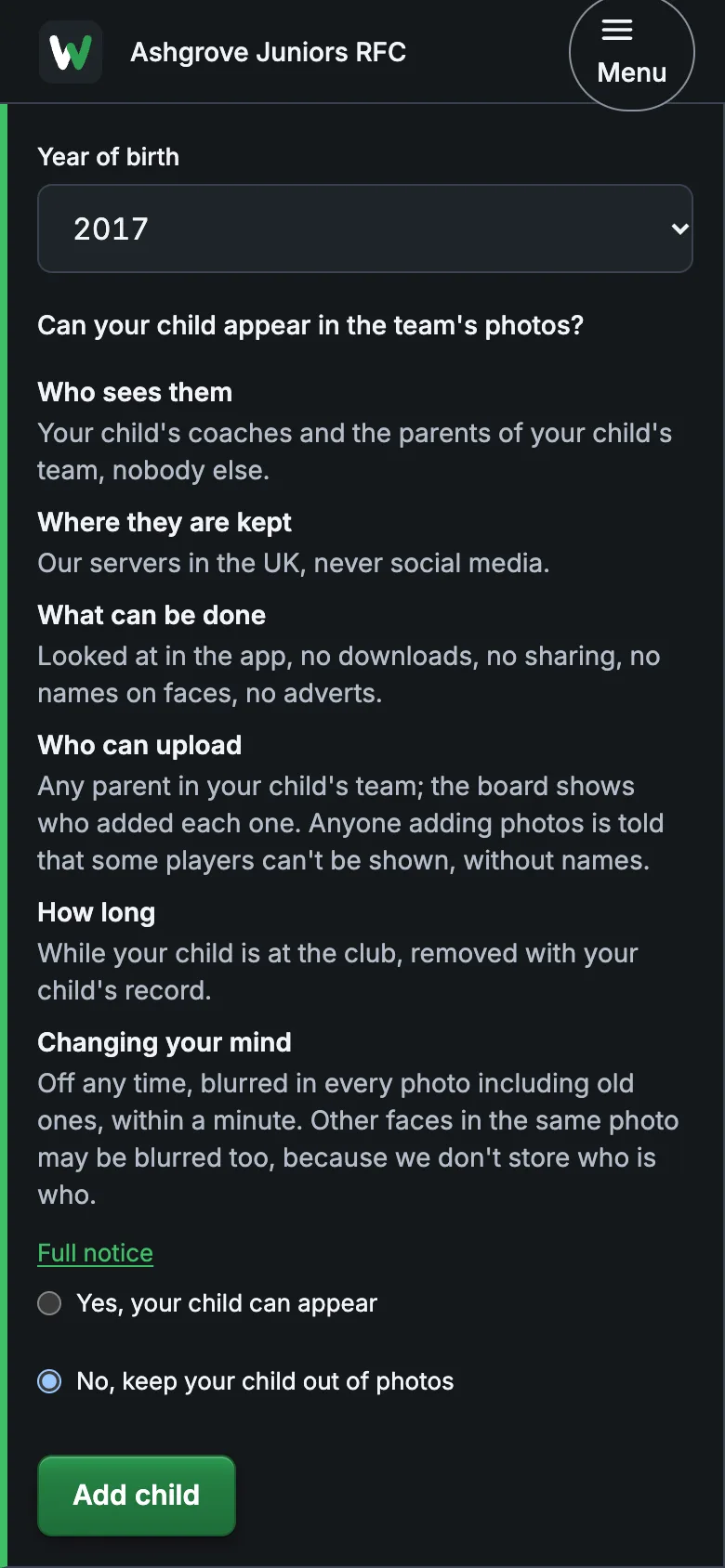
3Add your child and ask to join
First name and initial, the month and year they were born, and whether they can be in the team's photos. Children never have a login of their own. Then choose your child and tap Ask to join: the coach approves it, and your child is on the team.
About 2 minutes
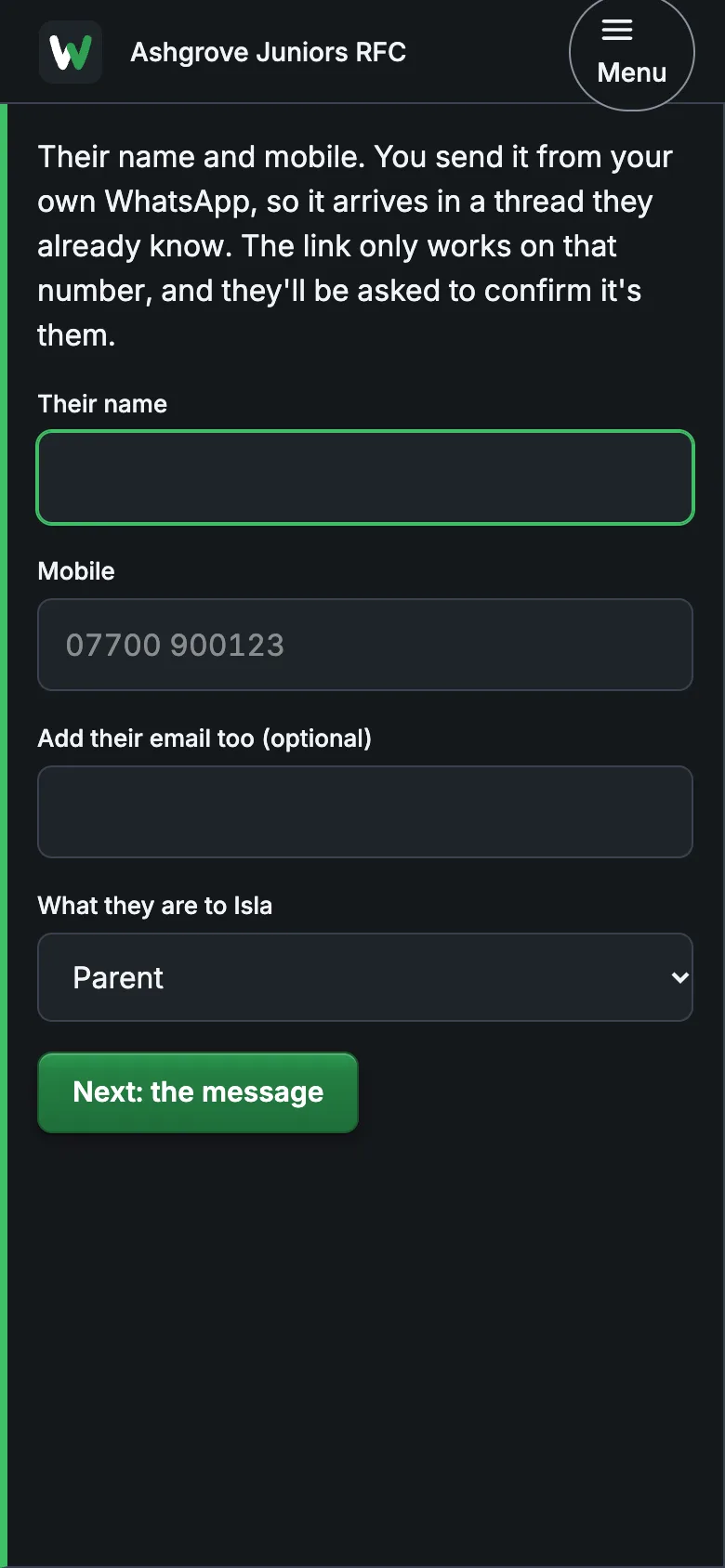
4Add the other parent
Open your child and tap Add other parent. They sign in the same way and see the same child. Don't both add your child.
About 1 minute
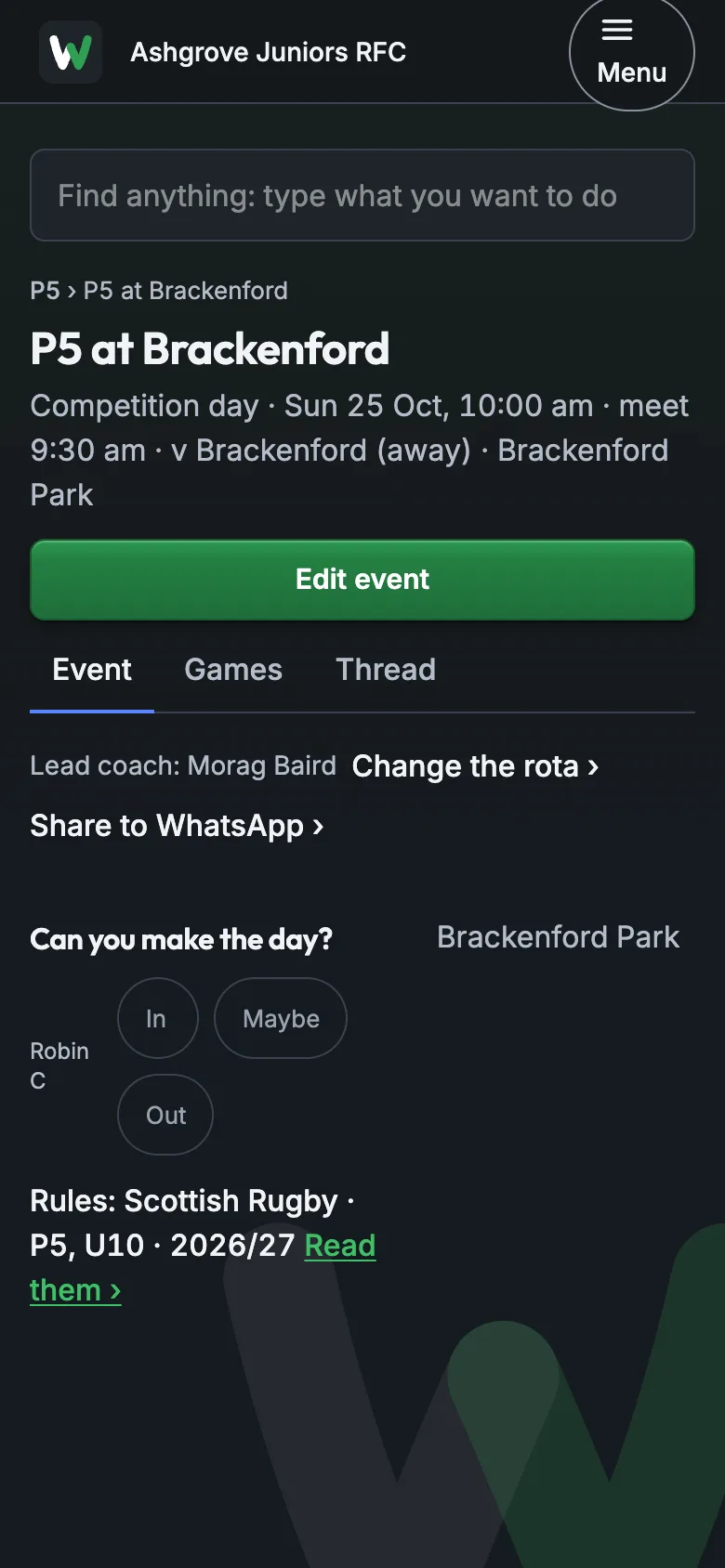
5Say In or Out
Each training and match asks Can you make it? Tap In, Maybe or Out for your child. The event's Thread is where the coach's messages about it go.
About 1 minute
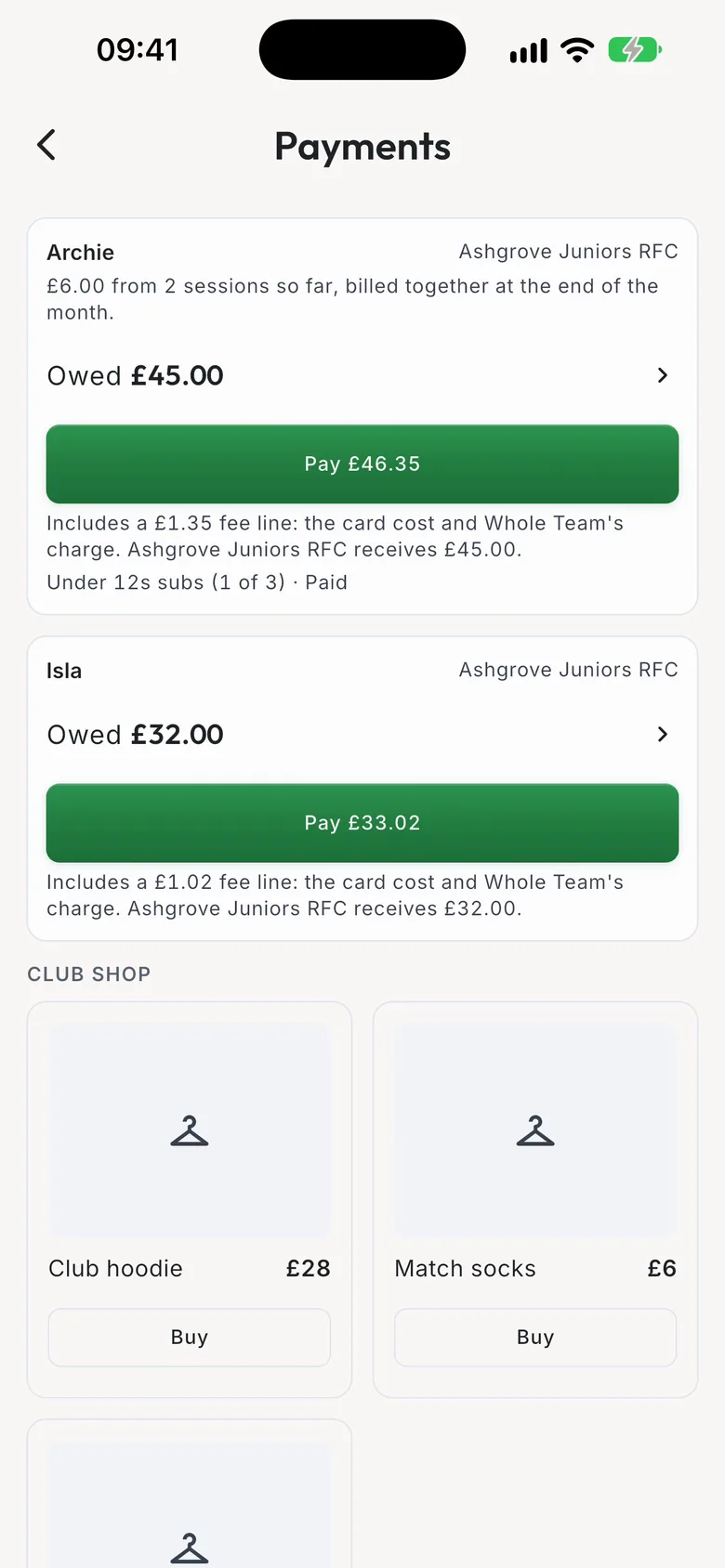
6Pay subs
On Home, tap Pay subs. Each child shows what's owed; tap Pay and pay by card on the next screen. The fee line is shown before you pay, and the money goes straight to the club.
About 1 minute
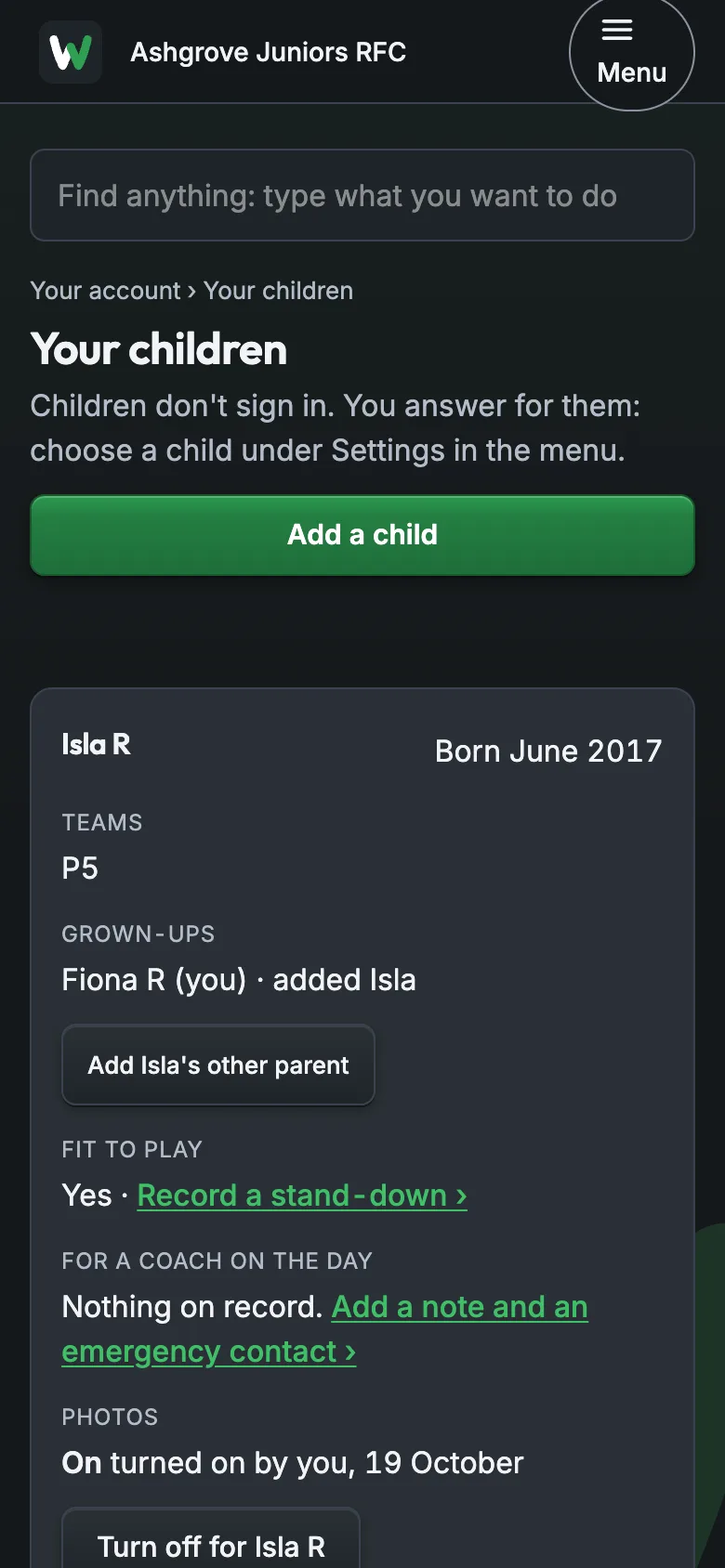
7What the club sees about your child
Your child's card shows their teams, their grown-ups, whether they're fit to play and the photo answer. You can change the photo answer here any time.
About 1 minute
Guides for the day
What to tell the others
If your child has another parent or carer, send them this so they don't add your child a second time.
I've joined our team on the Whole Team app and added our child. I'm adding you from our child's page: you'll get a link by WhatsApp or text.
Tap it, type the code you're texted, and say yes to our child. Please don't add them again yourself.
If it goes wrong
The code didn't come
It can take a minute. The screen shows the last three digits of the number it went to.
Wait a minute, then tap Send a new code. If the digits aren't yours, ask your coach to invite you again on the right number.
It says the invite was for a different number
The invite works only for the mobile your coach typed.
Ask your coach: "Please invite me again on the number I use."
It says my child is already on the team
The other parent added your child first. One child has one record, with both parents on it.
Ask them to open your child in the app and tap Add other parent with your mobile.
Still stuck? Talk to us: a person answers.
You're set up when
- You've joined your club
- You've added your child
- Your child is on their team
- The other parent is added, if there is one
- You've said In or Out for an event