


Game time
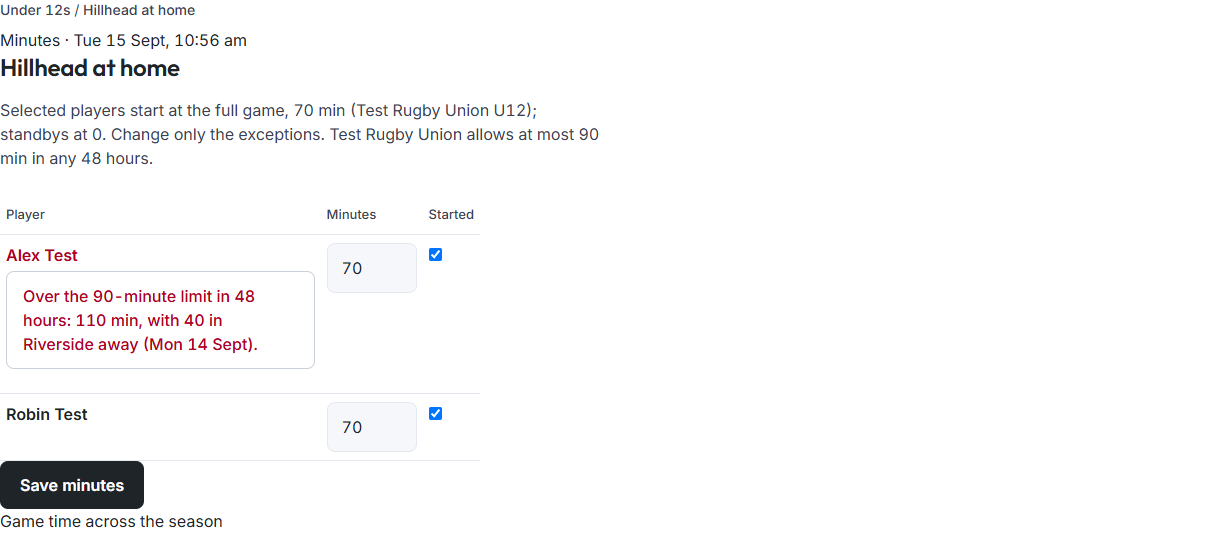
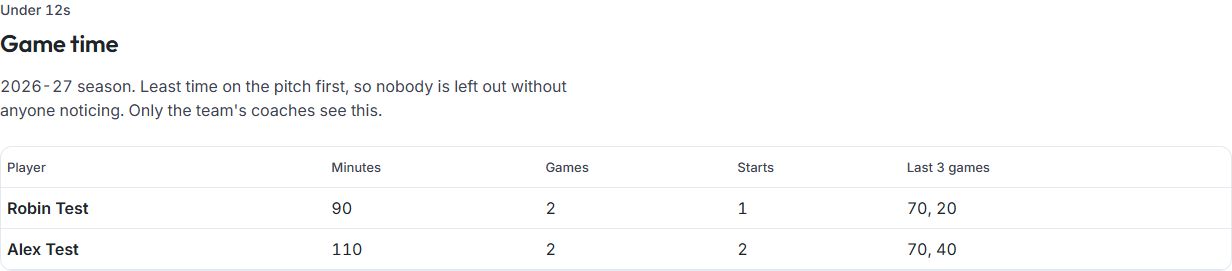
After a match, the team sheet becomes a minutes sheet. Selected players start at the full game and standbys at 0, so a coach changes only the exceptions. The sheet warns when a child would go over the governing body's limit for any 48 hours. Across the season, the game time table puts the players with the least time first, so nobody is left out without anyone noticing. Only the team's coaches record and see the whole team's minutes. A family sees their own child's.
Record minutes
- Open the match and choose Minutes. Or choose Coach in the rail, then Minutes and fairness, then the match.
- Each selected player shows the full game, for example 70 min. Change the minutes for anyone who played less, and untick Started for anyone who came on.
- A red line under a name means the child is over the limit, for example "Over the 90-minute limit in 48 hours: 110 min, with 40 in Riverside away (Mon 14 Sept)." Check before you save.
- Choose Save minutes.
Game time across the season
- On the minutes sheet, choose Game time across the season. Or open the coaching page and choose Game time with the team's name.
- The table lists each player's minutes, games, starts and their last 3 games, least time first.
For families
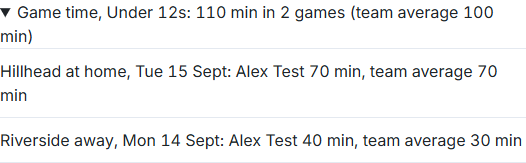
On Your family and profile (under your account, at the foot of the rail), each child on a team has Game time. Open it to see their minutes in each game beside the team average. You see only your own children's minutes; asking for anyone else's is refused.
Good to know
- The full-game length and the 48-hour limit come from the team's rules card. Without a published card, every player starts at 0 and the sheet shows no limit. See Rules and Play safe.
- A warning doesn't stop you saving. The minutes are what happened, and the warning is there so it happens less.