

Admin
Getting started as a club admin
Your club looking like itself, its teams and committee in place, a way for money to come in, and the coaches invited. About an hour, in one sitting or several.
What you'll have at the end
- Your club's badge and colours on every family's phone, and its teams for the season.
- The committee in their roles: treasurer, safeguarding officer, tea hut, team managers.
- A way for subs and payments to reach the club's bank, and every coach invited.
The steps
6 steps, about 55 minutes of your time.
1Your badge and colours
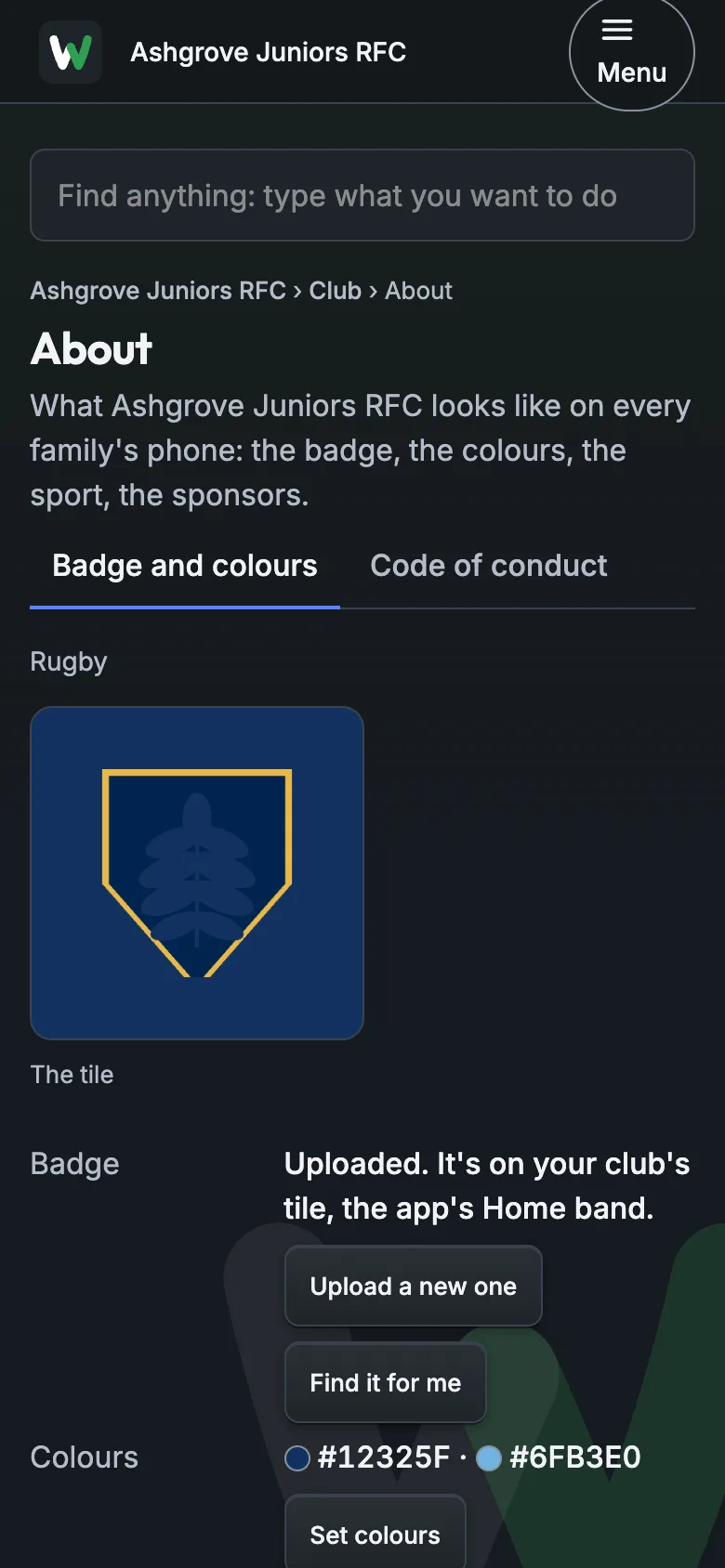
Club › About. Tap the tile to upload your badge, or let us find it by the club's name; then the colours. Families see them on every screen.
About 5 minutes
2Your teams and age groups
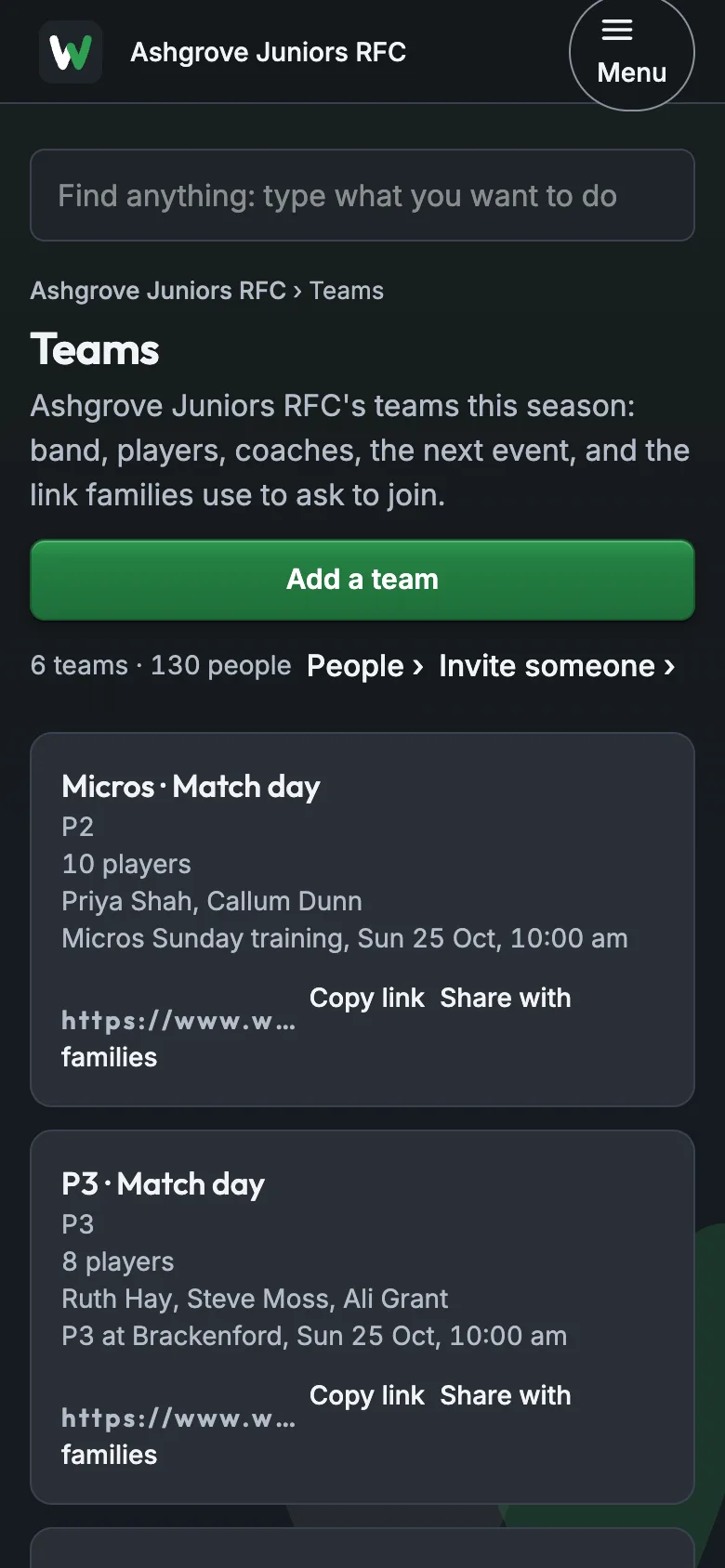
Teams › Add a team for each one, with its age band. Each team gets its own join link for families.
About 10 minutes
3The committee's roles
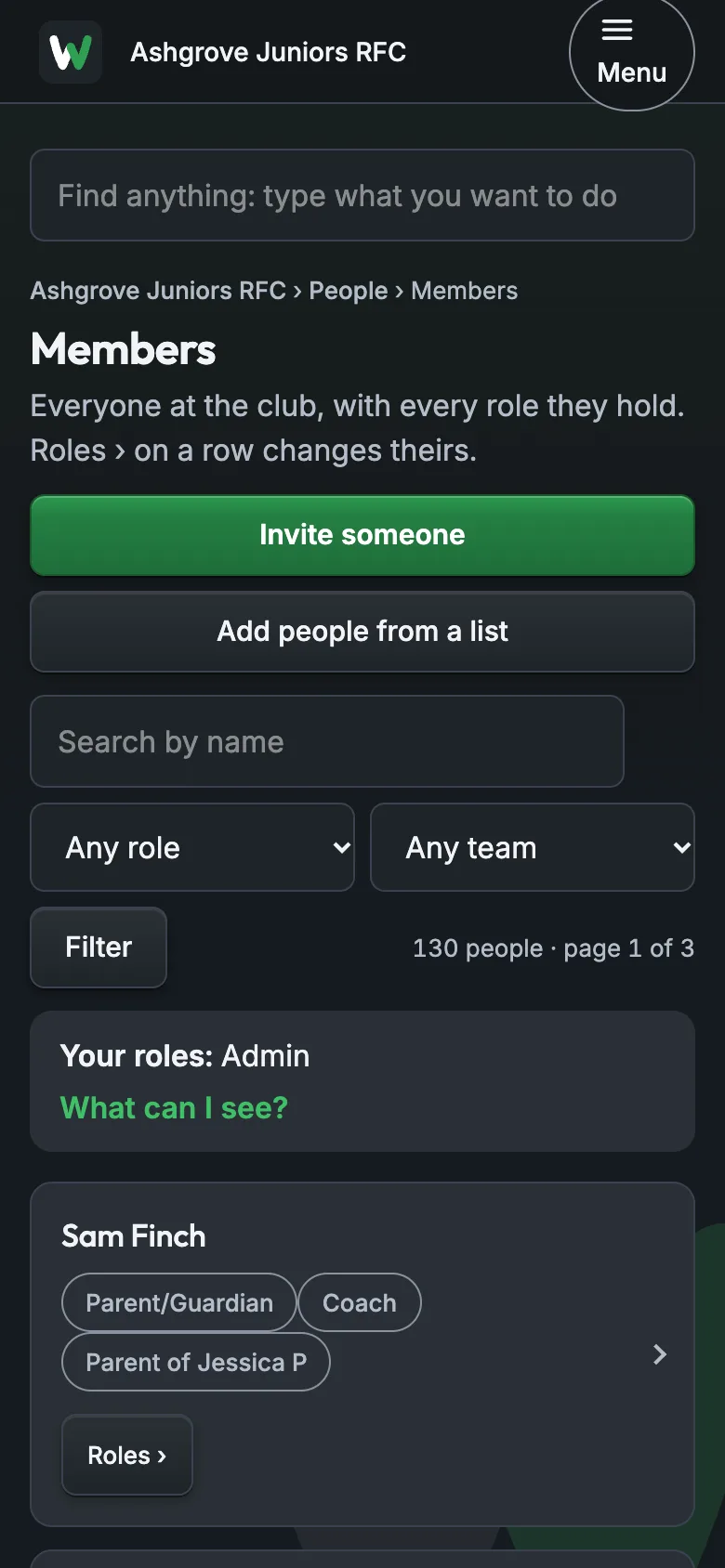
People › Members, then Roles › on a person: treasurer, safeguarding officer, tea hut, team manager. Each role sees what its job needs and no more.
About 10 minutes
4A way to pay
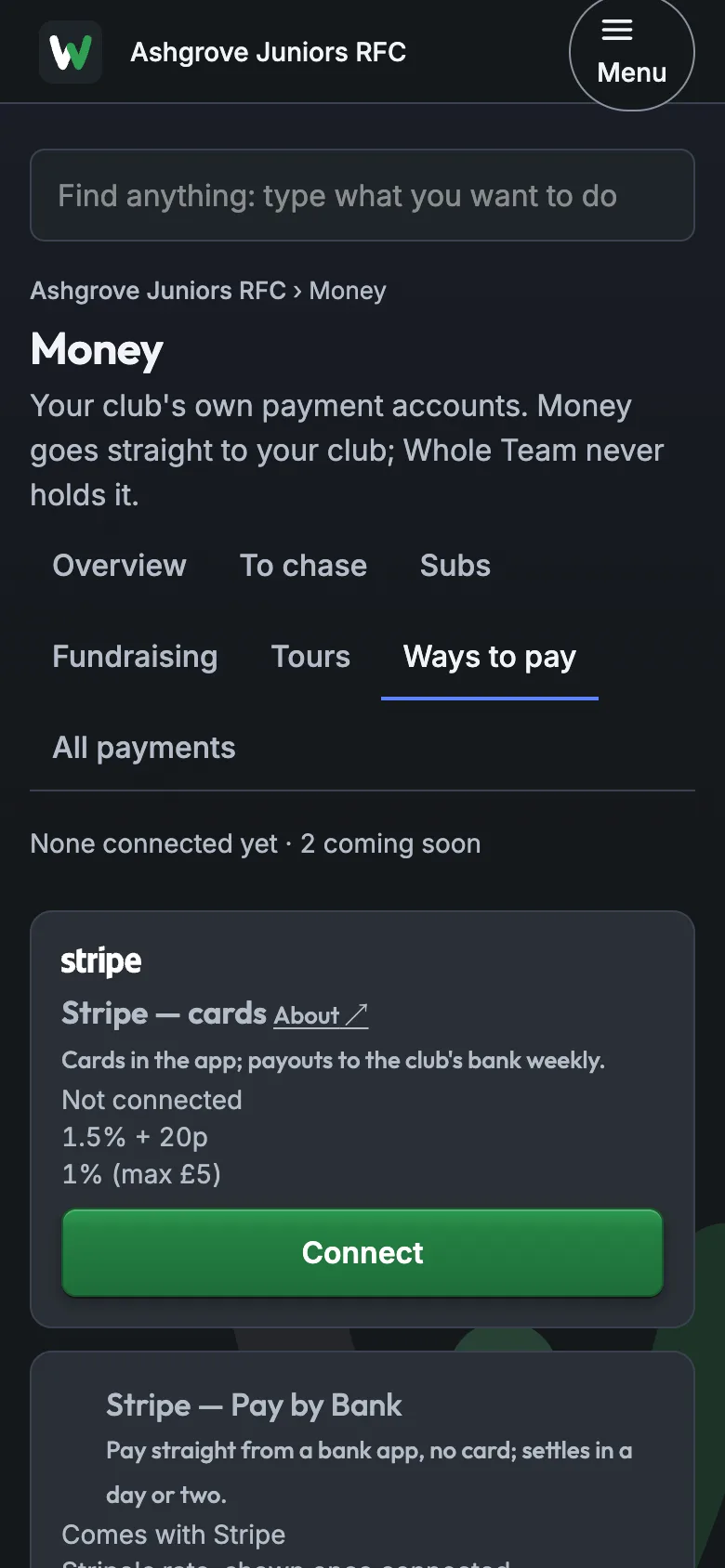
Money › Ways to pay › Connect. Stripe asks for the club's bank details and who runs it; payments then go straight to the club's bank.
About 10 minutes
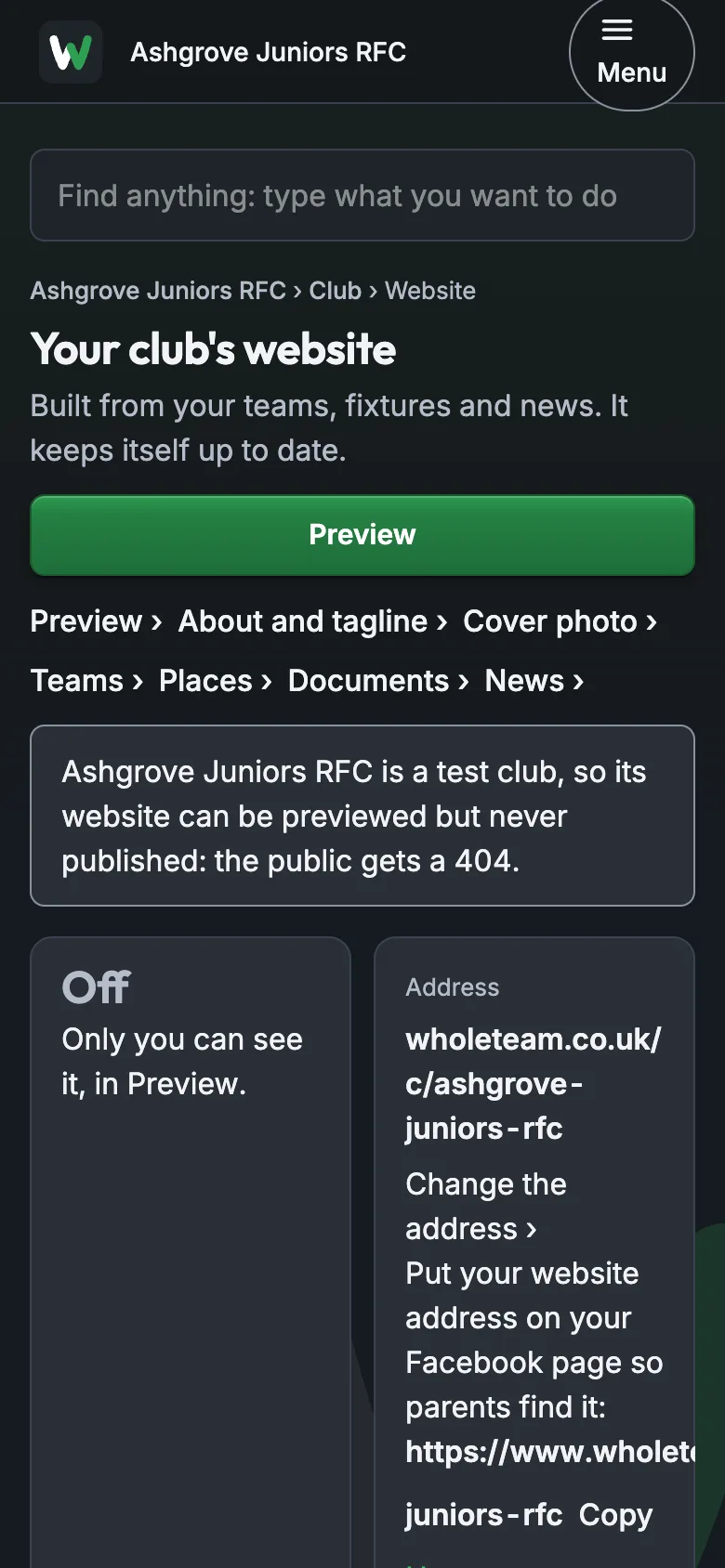
5Your club's website
Club › Website. It builds itself from your teams, fixtures and news: preview it, choose its look, and switch it on when you're happy.
About 10 minutes
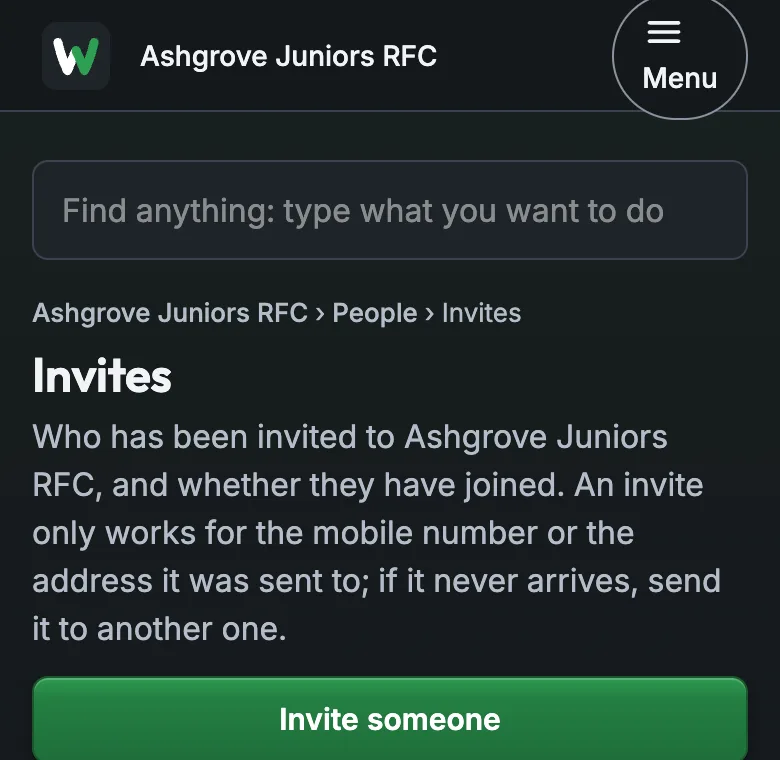
6Invite the coaches
People › Invites › Invite someone: their mobile, Coach, and their team. They get a WhatsApp from you and sign in with a code; then they invite their team's parents.
About 10 minutes
Guides for the day
What to tell the others
Send this to your committee and coaches before the invites go out.
We're running the club on Whole Team this season: teams, fixtures, In or Out, messages and subs in one place.
You'll get a WhatsApp invite from me with a link. Tap it, type the code you're texted, and you're in, with what your role needs.
Coaches: once you're in, invite your team's parents from your team's page. There's a guide for you at wholeteam.co.uk/getting-started.
If it goes wrong
"Stripe is asking for documents."
Stripe checks who runs the club before money can be paid out; it can ask for ID or the club's constitution.
Have the treasurer or chair finish it with the club's documents to hand; payments start once Stripe says yes.
"I can't see Money."
Money shows to the club's admins and its treasurer. A coach or parent doesn't see it.
Give them the Treasurer role: People › Members › Roles › on their name.
"A coach's invite didn't work."
The invite works only for the mobile you typed, and only until it's used or cancelled.
"I'll send it again." People › Invites › Send again on their row, or invite their right number.
Still stuck? Talk to us: a person answers.
You're set up when
- Your club has its badge
- Your club has its teams
- Someone holds a committee role besides you
- A way to pay is connected
- You've invited a coach