


Help
How to use Whole Team, step by step. These guides cover what works today; new ones arrive as each feature ships.
Show me how
Short, silent screen recordings. One task each.
Getting started
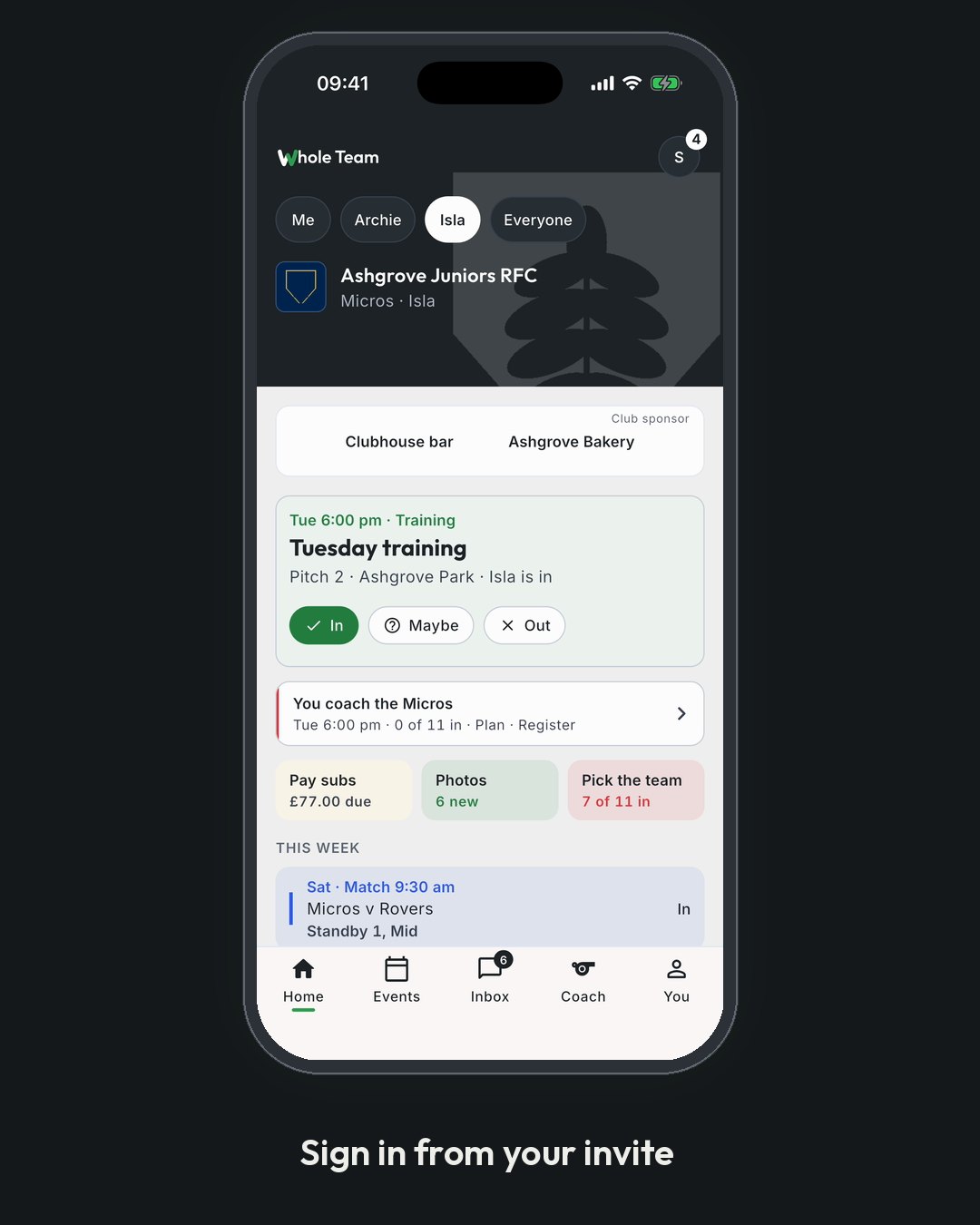
- Signing in
Whole Team has no passwords. A password is a secret we'd have to keep for everyone who manages children's details, and the thing most often stolen. Instead you sign in with a code we email you, or with a passkey, and you stay signed in on your own devices, so a treasurer who signs in once a month isn't waiting for an email every time.
- Signing in by text
If your club has your mobile number, you can sign in with a code we text you instead of one we email. It is the quickest way in on a phone, and it is there for the people who are at a ground rather than at a desk.
- Joining a club: your invite is the whole of it
You do not sign up to Whole Team and then go looking for your club. Your club invites you, by email, and the invitation is the whole of it.
- Your profile: your name and your mobile
Whole Team asks you for two things about yourself, once: your name and your mobile number. Your name is so the people at your club know who they are talking to; your number is so they can reach you if something happens at a session. You are asked for them the first time you sign in, and you can change either of them afterwards on You › Your profile.
- Setting up a club for the first time
Someone setting up a club goes through five short steps, and ends on their first team's roster, ready to add players. Steps 3 to 5 can be skipped and done later.
- Finding your way around
Every signed-in page has one column on the left: the tree. - The tree: the Whole Team mark, your club, then the eight sections - Home, Teams, People, Season, Money, Cup, Coaching and Club - each with a coloured dot (green for the club, blue for the cup, red for coaching). At its foot is your initial, which opens your account. - The section you're in is open, with its pages listed under it. A section with named things (Teams, and the competitions your club runs under Cup) lists them by name.
- Inviting a parent
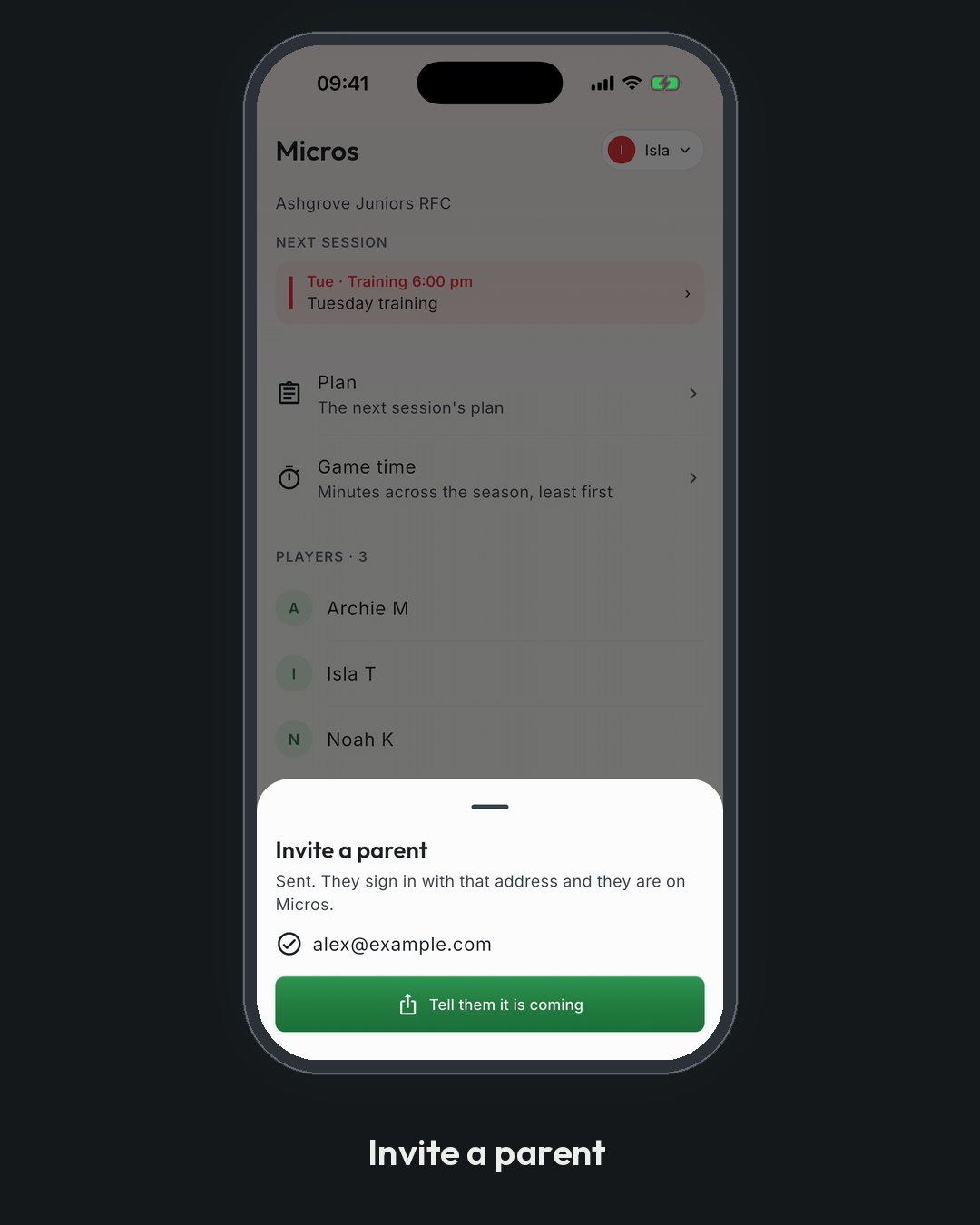
A club is the families in it, and this is how they get in. One invitation, to one family, sent by email.
- Inviting people and importing families
Club admins invite people one at a time from Invite someone, or bring a whole team list across with Import families. Every invite sends an email from the club. A child from an import is added only when their guardian signs in and confirms them.
Running the club
- Players: who is on a team
Club admins use the roster to put people on a team and take them off. It lists everyone on the team, with a child's guardians shown as "child of", and everyone in the club who is not on the team yet, including the children of club members. Taking someone off a team never deletes them: they move to "Left the team" and can be added again.
- A child playing in another band
Most children play in the band their age puts them in. Some do not, and that is normal: a governing body gives a dispensation, a club bio-bands, a girls' pathway spans two bands at once, or the club simply decides that this child is better off with that group this season.
- About: badge, colours and sponsors
Club admins give the club its logo and two colours, and can list up to 3 sponsors. Your colours appear in the logo ring, the kit swatch, the club page header and the public fixture page, and as a faint tint behind your club's pages. They never replace the green, blue and red that show which part of the app you are in, or the availability chips.
- Your club's website
Your club can have its own website, at no charge, built from what is already in Whole Team: your crest and colours, your teams, your fixtures, your news, how to join and where you play. Nothing is typed twice, so nobody has to keep it up to date. You run it from Club › Website, and whoever holds the club's identity permission can.
- Venues and pitches
A venue is where the club plays or trains: a name, an address, its pitches and a note (parking, which gate). Every event can pick a venue and a pitch, and the event page then shows the note and an Open in maps link that opens the phone's own maps app.
- Seasons, team labels and Settings
Club settings hold the things a club sets once: when its season starts, how teams are labelled, its governing body, who pays the card fee, and its charity or CASC status. Each team has an age band (U7 to U18) and a season. When a new season comes, Start new season moves every team up one age band and copies who is on each team, keeping last season's records.
- Rules and Play safe
A club that has set its governing body sees that body's age-grade rules for each team: players a side, pitch size, the most minutes a child can play, tackle height and similar. Every card says where its values come from and when they were checked. Beside it, the body's Play safe card says what to do when someone is hurt. Cards show only once Whole Team has checked them against the season's documents and published them; until then a team shows no card at all.
- Overriding a rule
A club can set its own value for one line of a rules card, for example a lower limit on minutes agreed with the local league. The card then shows the club's value, marked differs from the governing body, with the club's reason and the body's own value beneath. Every member who sees the card sees all three, so nobody follows a number without knowing where it comes from. Only club admins can set or end a club's value.
- Code of conduct
A club publishes its code of conduct, starting from the Whole Team template, and every adult member accepts it the next time they sign in. The safeguarding officer and club admins can see who hasn't. Players under 18 are not asked.
- Taking money: setting up, subs, the fee line and refunds
The club's treasurer or an admin sets up card payments once, then adds plans for what families pay. Money goes straight to the club's own bank account through Stripe; Whole Team never holds it. Only people who hold the treasurer or admin role for the club can open Payments.
- Money: owed, collected, chasing, fees waived and the export
One page for what the club is owed and has collected. Only people who hold the treasurer or admin role for the club can open it: choose Club in the rail on the left, then Treasurer.
- Tea hut: the menu, the till and tabs
The tea hut team and club admins keep a menu with prices and allergens, sell from a phone, and let families run a tab that they pay once. Choose Club in the rail on the left, then Tea hut.
- The club shop: pre-orders
The treasurer opens an order window for kit, families order and pay in the app, and the club sends one sheet to its supplier. There's no stock and no delivery tracking. Choose Club in the rail on the left, then Club shop.
- Club Plus
Club Plus adds the club's sponsors banner and the treasurer's export. Everything else, including payments, the tea hut, cash and QR sales, and the shop, costs every club nothing.
- Downloading the club's data
Everything your club owns in Whole Team is yours, and you can take a copy whenever you like. There is no charge for it, it is not part of Club Plus, and it is complete enough to move your club somewhere else.
- What happens to old records
Whole Team keeps what your club needs and lets go of the rest. Nothing a club needs for its records to add up is ever destroyed; what goes is the person, not the history.
- The counts on Home
Whole Team counts six things, so we can tell whether the product works. Your club can see its own counts under Club > Numbers.
- Kit and equipment
What the club owns, who has it, and what needs replacing. It lives under Club > Kit, and it belongs to the quartermaster: a hat anyone in the club can wear, like the tea hut.
Teams and events
- Who was there
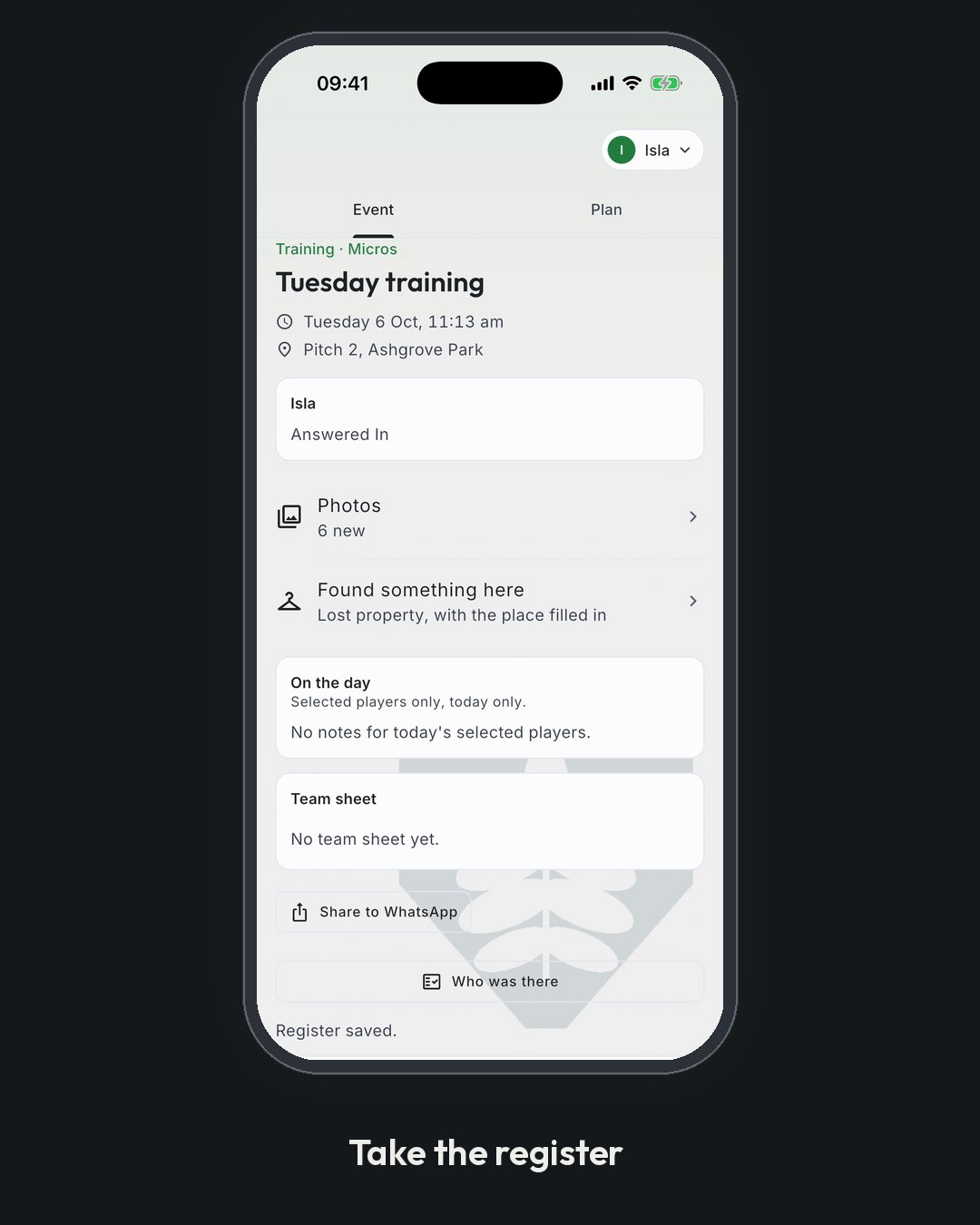
After an event starts, the team's coaches and club admins mark who actually came. Everyone who said In is already ticked, so you only change the exceptions. The register is kept apart from availability.
- Repeating an event
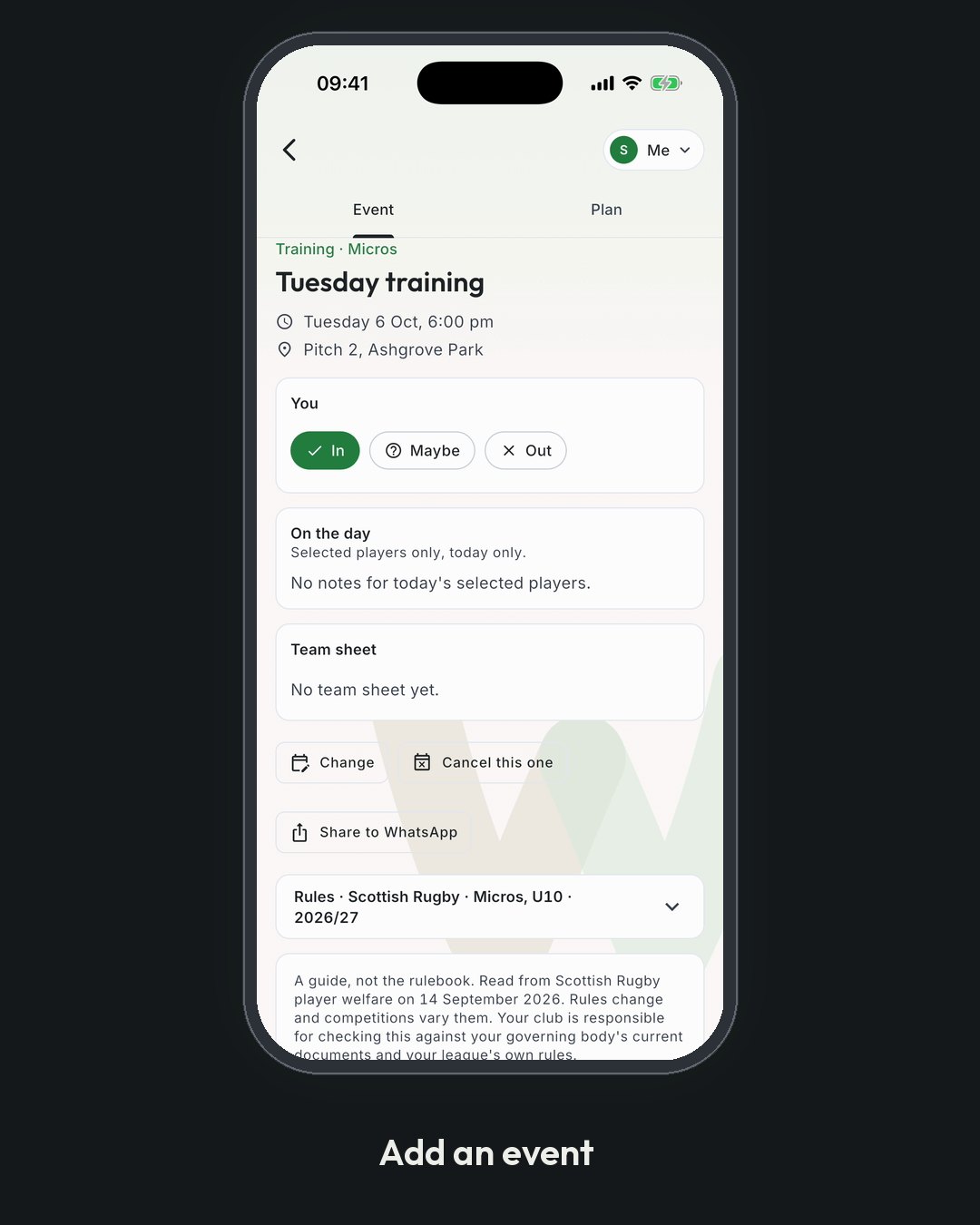
Training on the same days every week does not need fifty events typed in by hand. Add the first one, tick Repeat, and Whole Team makes the rest.
- The calendar
A list is right when you are a parent checking what is on this week. It is wrong when you are a coach looking at a month. Calendar, under Club in the menu, shows every event for the teams you are connected to as a month grid or a week.
- Seeing who's in, and picking the team
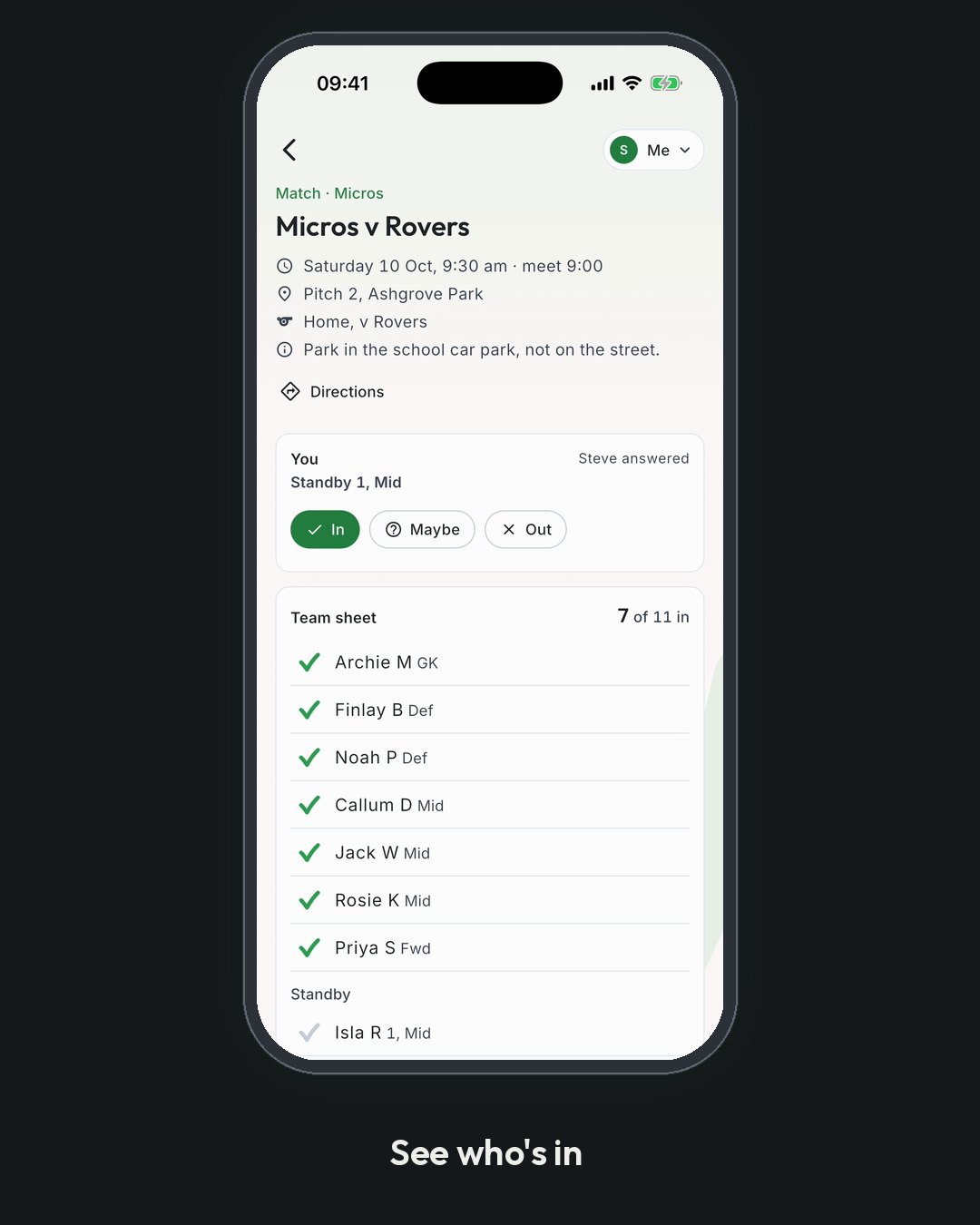
Before a match somebody has to decide who plays. Whole Team puts the two things that decision needs on one screen: who said they were coming, and who has played recently.
- A competition day
A competition is a day your club runs, not a single fixture at your ground. When a competition is created, each team that has entered gets one day event: a home day for your club's teams, an away day for visiting teams.
- Notifications
Whole Team interrupts people only for four things. Everything else waits for the daily digest.
- Share an event to WhatsApp
Most teams already have a WhatsApp group. A coach can post any event into it from their own phone: a short summary and a link. Families tap the link to open the event in Whole Team and say whether they can make it. Replies happen in Whole Team, not in the group.
- Team chat, announcements and event threads
Every team has an open team chat, an announcements thread, and a thread on each event. Adults on the team, including parents of children on it, can read and post. Players under 18 can read but not post. Team chat never sends a notification. There are no direct messages between people.
- Competitions: tournaments, entries, leagues and results
Club admins and organisers create competitions; coaches and admins enter their teams; results are entered by the organiser or the people they nominate. Choose Cup in the rail on the left: Run a competition and Draw and schedule for organisers, Our entries and Fixtures and results for everyone.
- Hosting a competition
A home competition day carries everything a club running an event needs. None of it appears on an ordinary training or match, or on an away day.
- Entry fees
A competition can charge an entry fee. You set it once, and Whole Team collects it from each club that enters — including clubs that are not on Whole Team, who pay a link with no account. Entering and paying are separate, so a coach can enter a team without touching money and the treasurer pays afterwards.
- The volunteer rota
A home competition day needs people: marshals, first aid, car park, tea hut, a referee. The rota on the day lists the roles you need and how many of each, and lets adults put their own name down.
- Running a tournament: the draw, the schedule and publishing
Once entries are in, the organiser makes the draw, schedules the games and publishes. Nothing reaches clubs or the public until you publish. Open the competition and use Make the draw, Site map and Schedule.
- The site map
The organiser draws the competition's pitches and markers on a map of the venue. Entered clubs see the map, and the schedule uses its pitches. Open the competition and choose Site map.
- The public competition page
When you publish a tournament it gets a public page that anyone can open without signing in: families on the touchline, grandparents at home, clubs that didn't enter. Share its link however you like.
- Entering scores at the pitch
The organiser and the scorers they nominate enter scores from a phone at the side of the pitch. Each score shows on the public page straight away.
- Leagues
An association is a league, district or county body whose members are clubs. It runs tournaments that only its member clubs can enter, and when it publishes, the fixtures go straight into those clubs' calendars.
- Leagues and the weekend board, for a league body
An association is a district, county or league body whose members are clubs rather than people. As well as running tournaments, it can run a league between its member clubs and publish one board of the weekend's fixtures.
- Photos: pictures from the touchline
Each team has one photo board a season. Photos show as squares, newest first, grouped by the day they were taken and tagged with the event. There are no likes, no comments and no names on faces. Nobody can download or share a photo. Only the team's members and its coaches see the board.
Coaching
- The playbook: the club's drill cards
Each club has one playbook, shared by all its teams. It holds the club's own drill cards and a free library of starter cards and cards other clubs have shared. Every card has a one-breath line: what a coach says to 9-year-olds before they run.
- Making a drill card
The club's coaches and admins make drill cards for the club's playbook. A card must have a one-breath line of 30 words or fewer: the line a coach says to 9-year-olds before they run. A card with a longer line can't be saved.
- The diagram editor
Each drill card has one diagram, drawn in the editor. Everything is placed in metres on the pitch, so the same diagram draws the same on the card, on paper and in the app. Only the club's coaches and admins can draw diagrams.
- Building a session
A training session can have a plan: blocks in order from warm-up to cool-down. Each block is a drill from the playbook or a line of free text. Only the team's coaches see the plan. Families see the event as usual.
- The coach rota
Every event can say who is coaching it: a lead coach, anyone assisting, and who has the kit. Only people who hold the Coach or Manager role on the team can be named, and only a manager can be down for kit. An event with no lead shows "No coach yet", and club admins see it in their digest in the week before.
- Game time
After a match, the team sheet becomes a minutes sheet. Selected players start at the full game and standbys at 0, so a coach changes only the exceptions. The sheet warns when a child would go over the governing body's limit for any 48 hours. Across the season, the game time table puts the players with the least time first, so nobody is left out without anyone noticing. Only the team's coaches record and see the whole team's minutes. A family sees their own child's.
- Safeguarding checks: who is checked, and when
The club's record of each coach's and manager's safeguarding checks (PVG, DBS or AccessNI) and the qualifications the club asks for. It holds a check type, the membership or certificate number, dates and who verified it. It never holds what a disclosure says, and there's nowhere to upload a certificate. The safeguarding officer and club admins keep it; each coach sees their own entry.
- Setting up what Who was there asks for
The coach register records the qualifications a club asks its coaches to hold. Whole Team has a starter list for each governing body: the safeguarding course, first aid and coaching awards it expects, with how often each is renewed. A club can use it, add its own, or both. Nothing is imposed. Where our research hasn't confirmed a detail against the body's own page, the requirement arrives as not checked with a VERIFY note, and the digest won't chase an expiry on it until the club marks it checked.
Families
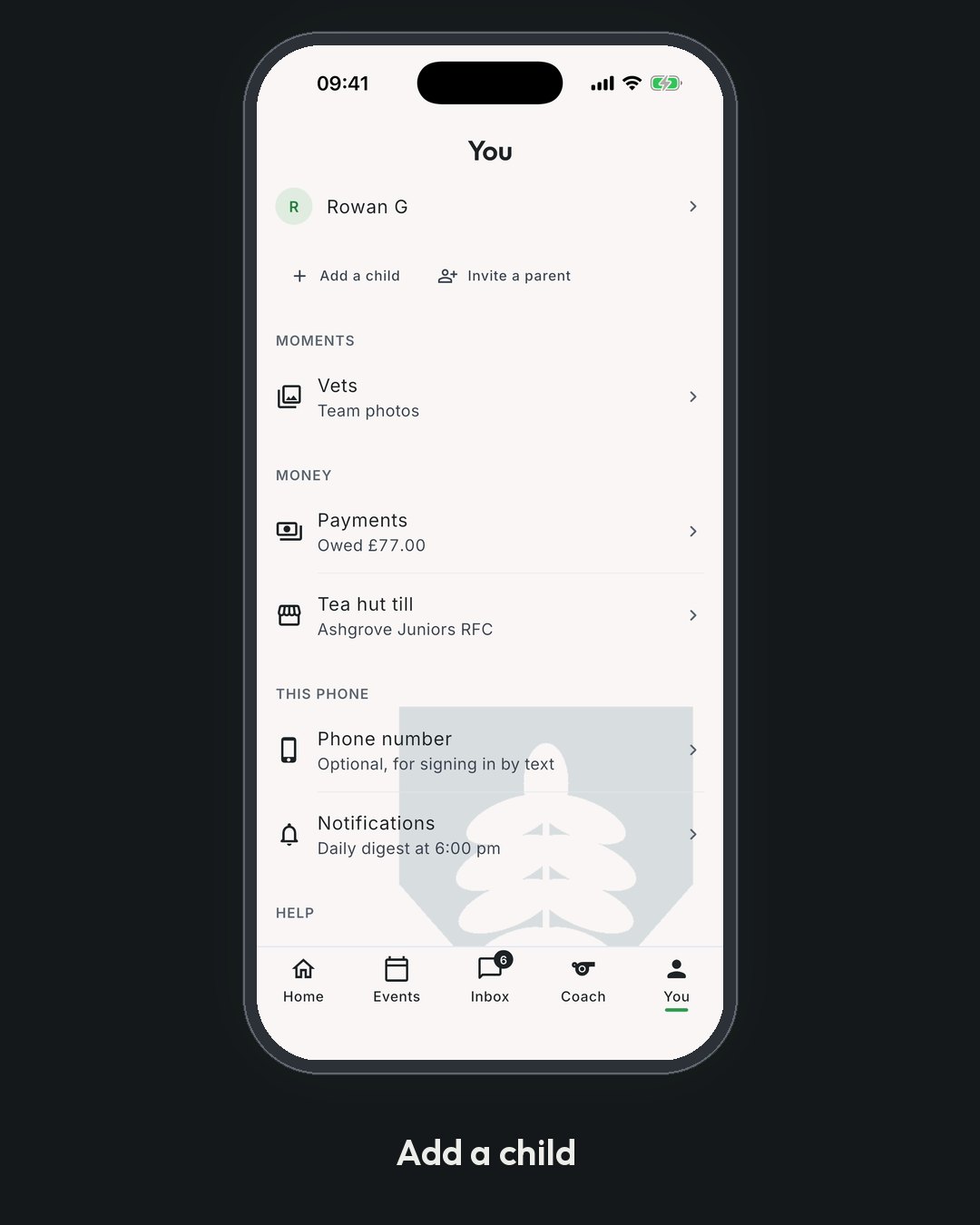
- Adding a child
Your children are yours to add, and nobody else's. A club can invite you; only a guardian creates a child's record, and it does not exist until you have made it. You add them on You › Your family and profile, under Add a child.
- Family safety: coach's note, photos, fit to play
On Family, each child has three things a guardian looks after: a short note for the coach, whether the child can appear in team photos, and whether they are fit to play. The club's coaches and other team staff see the note on any day. Stand-downs stop a child being picked until the date.
- Who to call: a child's emergency contact
For each child, a guardian can give one phone number to ring if something happens at training or a match, and a short note about anything a coach should know. Both are optional, both are given by you, and both can be removed at any time.
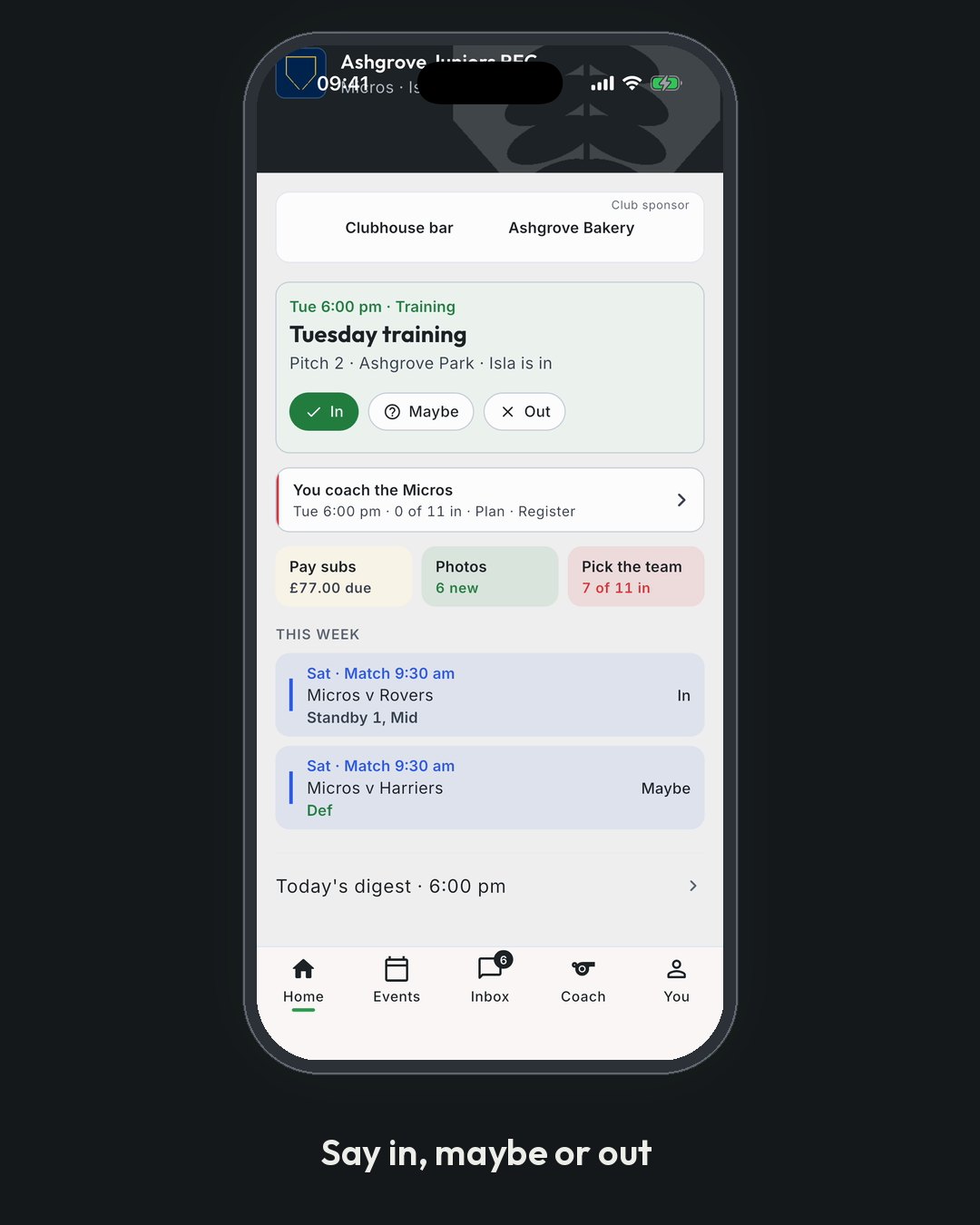
- Saying you're in, and seeing who is
Every training session and match asks one question: is your child coming? Answering it takes a tap, and it is the single most useful thing a family does in Whole Team. A coach who knows by Thursday who is coming on Saturday can pick a team, order the right number of shirts and tell nobody they have had a wasted journey.
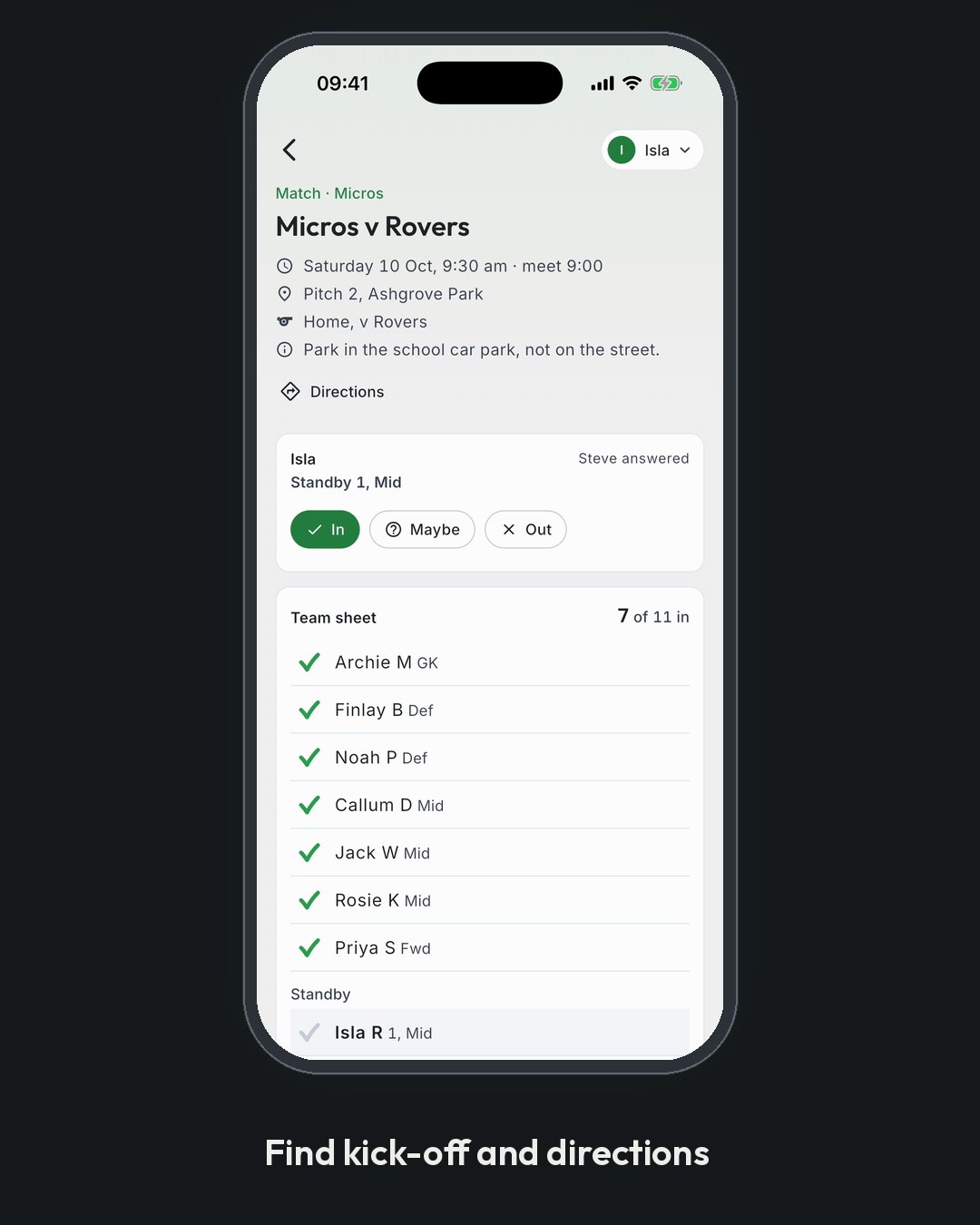
- Where it is, and when to be there
An event tells a family the three things they actually need on a Saturday morning: what time to arrive, where it is, and how to get there.
- Photo consent for your child
Your child appears in their team's photos only if you say yes. You're asked once, when you add or confirm your child, and there's no answer chosen for you. You can change your mind at any time, and turning it off blurs your child in every photo, old ones included, within a minute.
- Your daily update
Everyone gets one summary a day, covering themselves and every child they look after. It lists what needs you, what changed, the week ahead and what happened in team chat, grouped by child. It arrives once a day at the time you choose, 6 pm unless you change it. On a quiet day nothing is sent, but the digest screen still shows the week ahead.
- What we send you, and when
Whole Team sends four kinds of email and nothing else. There are no adverts, no newsletters and no tracking: an email from us carries one picture, our own icon, and no hidden image that reports back when you open it. Every one arrives with a plain-text version as well, so it reads properly on a watch, on an old phone, and in any app that refuses pictures.
- Your events in your own calendar
You do not have to install anything to keep up with what is on. Whole Team gives you a private link you can add to whatever calendar you already use, and your events, and your children's, appear in it and stay up to date.
- Talk to us
If something in Whole Team is wrong, confusing or broken, write to us and a person answers. There is no ticket number, no category to choose and no robot: you write a sentence, we reply in the same place.
- Paying the club
When the club asks for subs, what you owe shows for each child, and for you if you play. You pay by card in the app, and the money goes straight to the club.
- Your data
Whole Team holds information about you and, if you are a parent or guardian, about your children. You can see it, correct it, take a copy of it, and ask us to remove it. This page says how, in the order most people need it.
Can't find it? Email hello@wholeteam.co.uk; a person answers.